Objective
This SOP outlines the steps to connect various integrations, including calendars, payment providers, and social media accounts, ensuring all necessary accounts are linked for seamless operation.
TABLE OF CONTENTS
Video Guide:
Key Steps
Step 1: Access Integrations 0:00
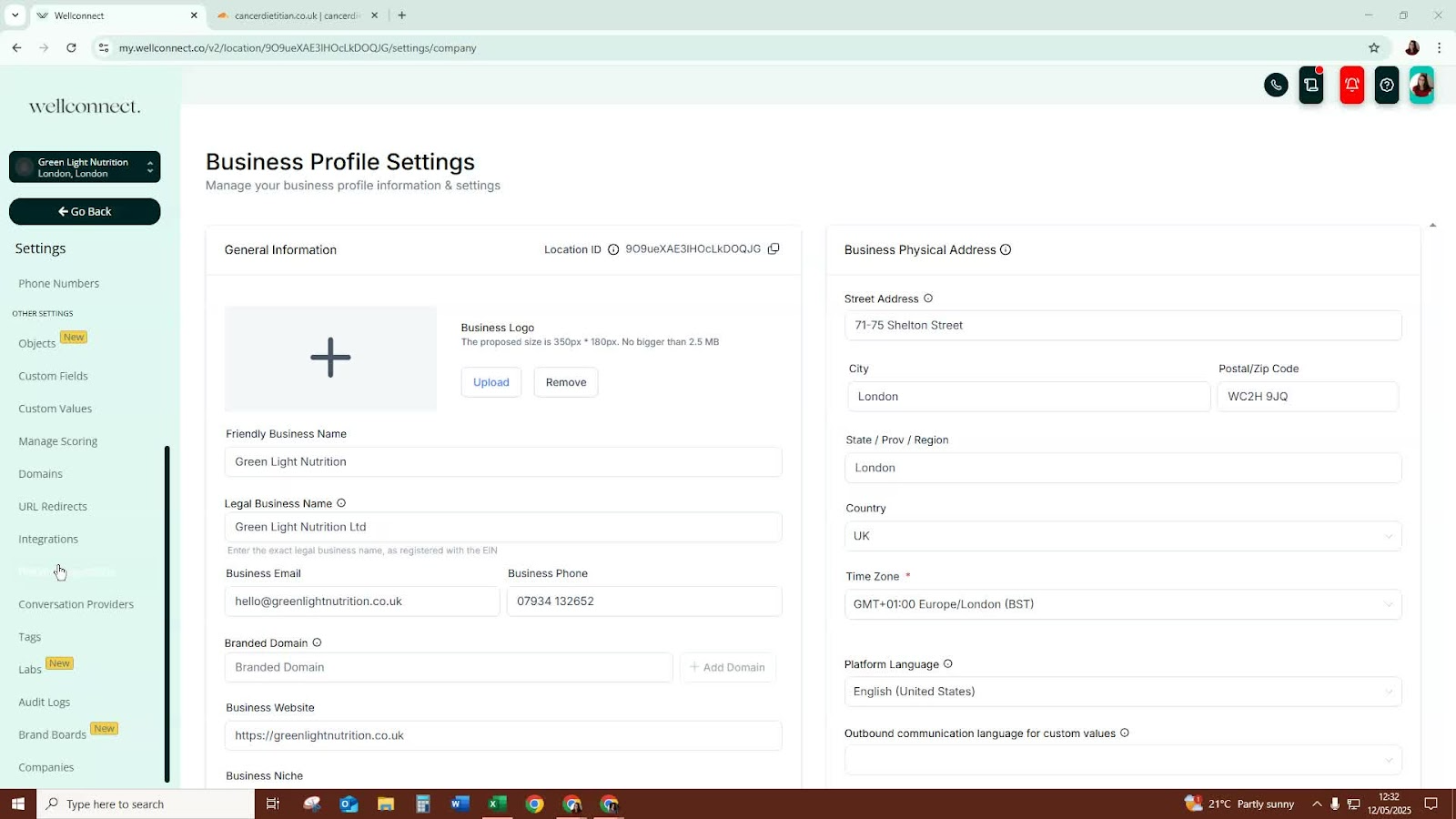
Navigate to the integrations section of the platform.
This is where you will connect all your integrations.
Step 2: Connect Your Calendar 0:11
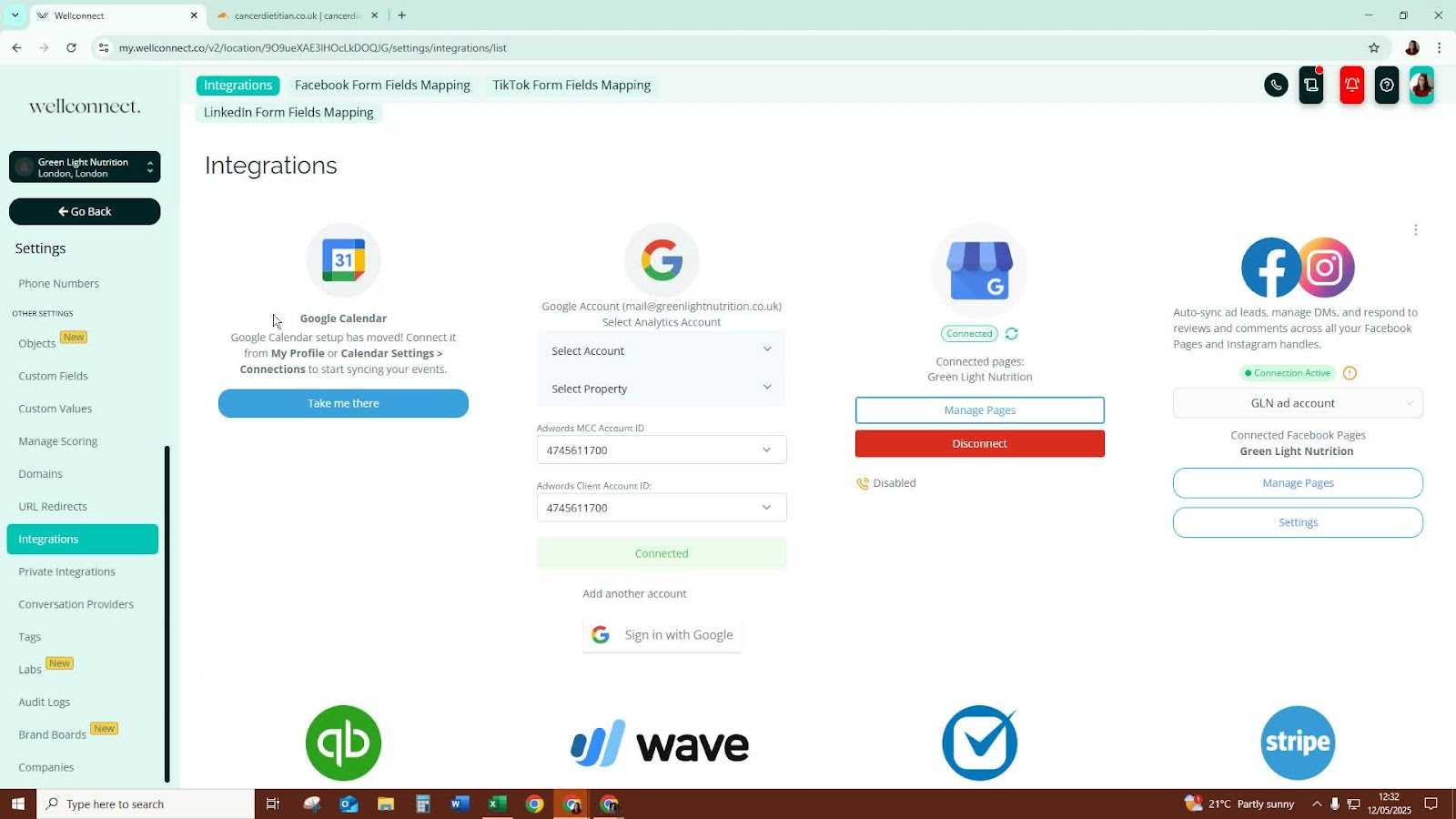
Check if your calendar is already connected.
If not, connect your calendar from the integrations page or your profile settings.
Step 3: Connect Google My Business 0:18
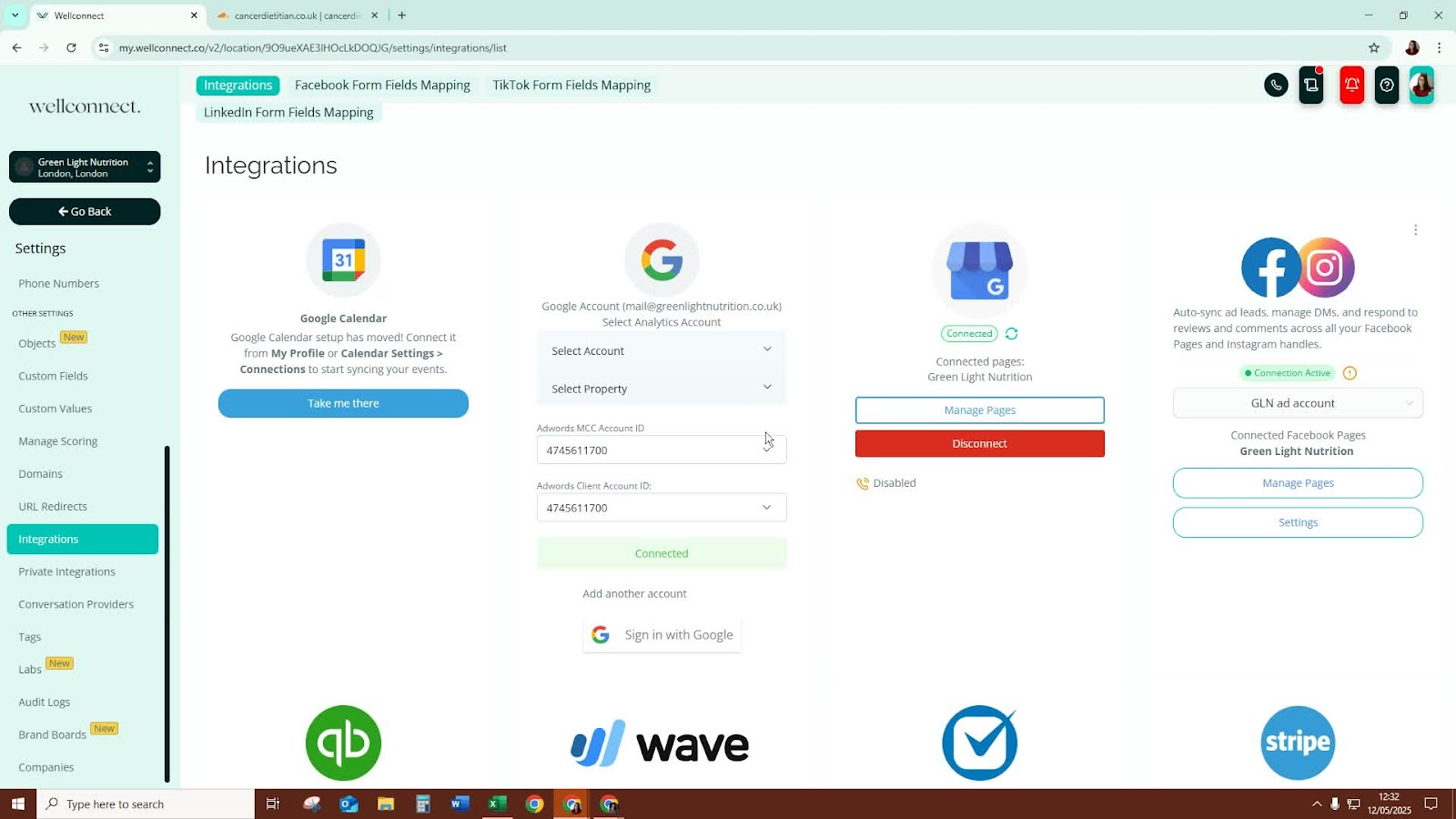
If you have a Google My Business account, locate the option to connect it in the integrations section.
Step 4: Connect Social Media Accounts 0:25
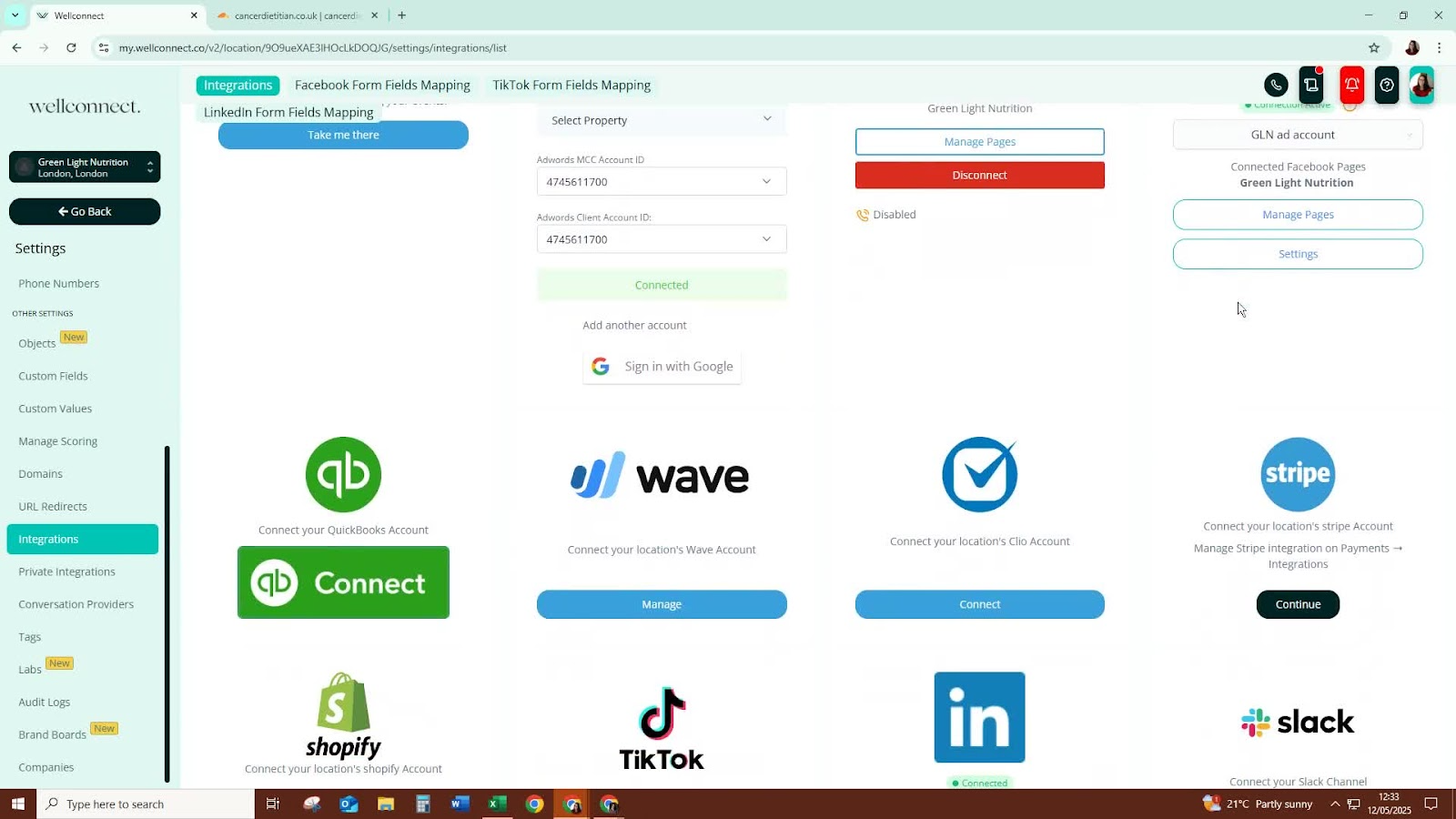
Look for options to connect your social media accounts.
Click on the relevant social media platforms to initiate the connection.
Step 5: Connect Payment Providers 0:41
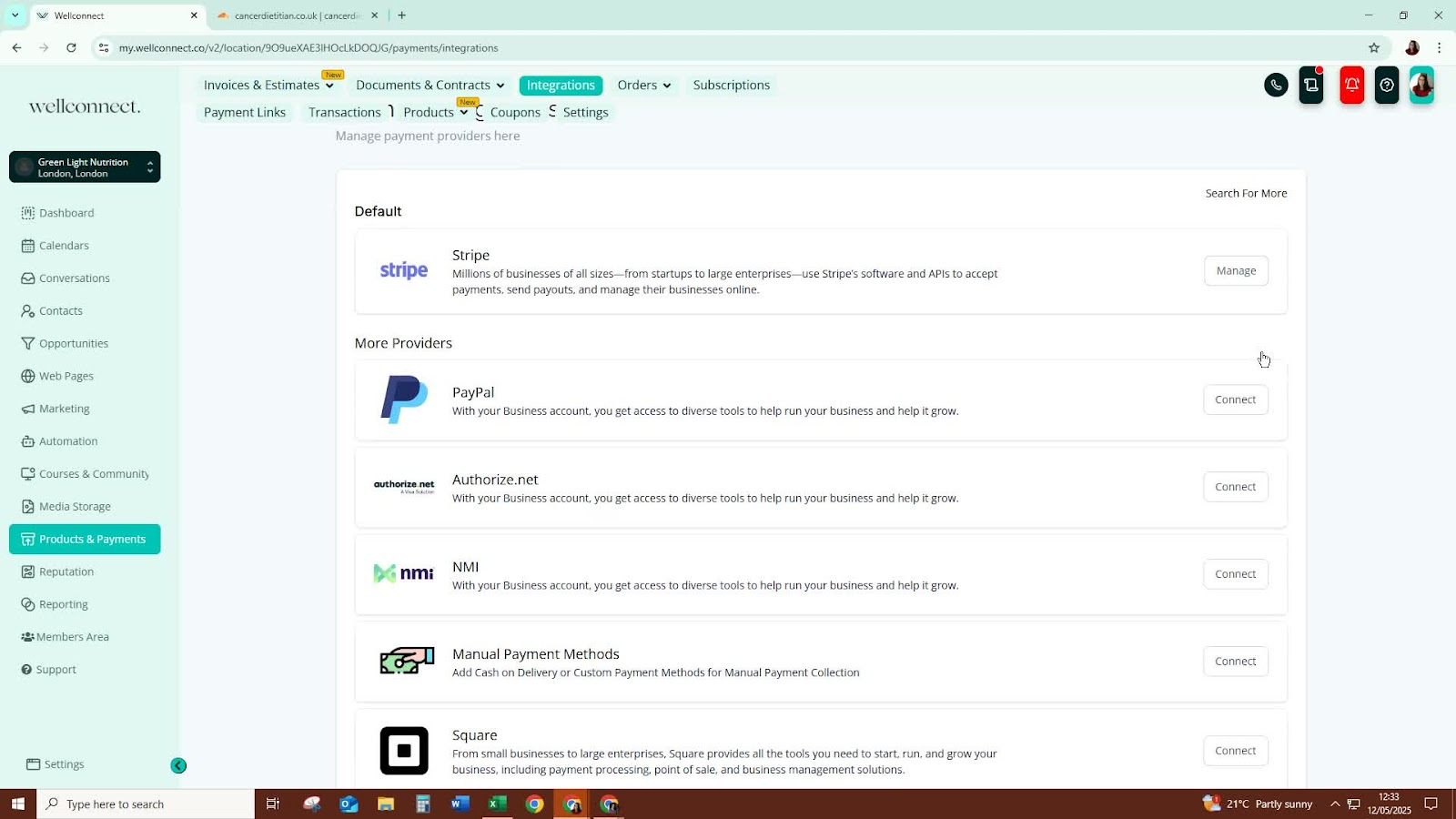
If you have a payment provider like Stripe, click on 'continue' to start the connection process.
Follow the prompts to successfully connect your payment account.
Step 6: Additional Integrations 0:58
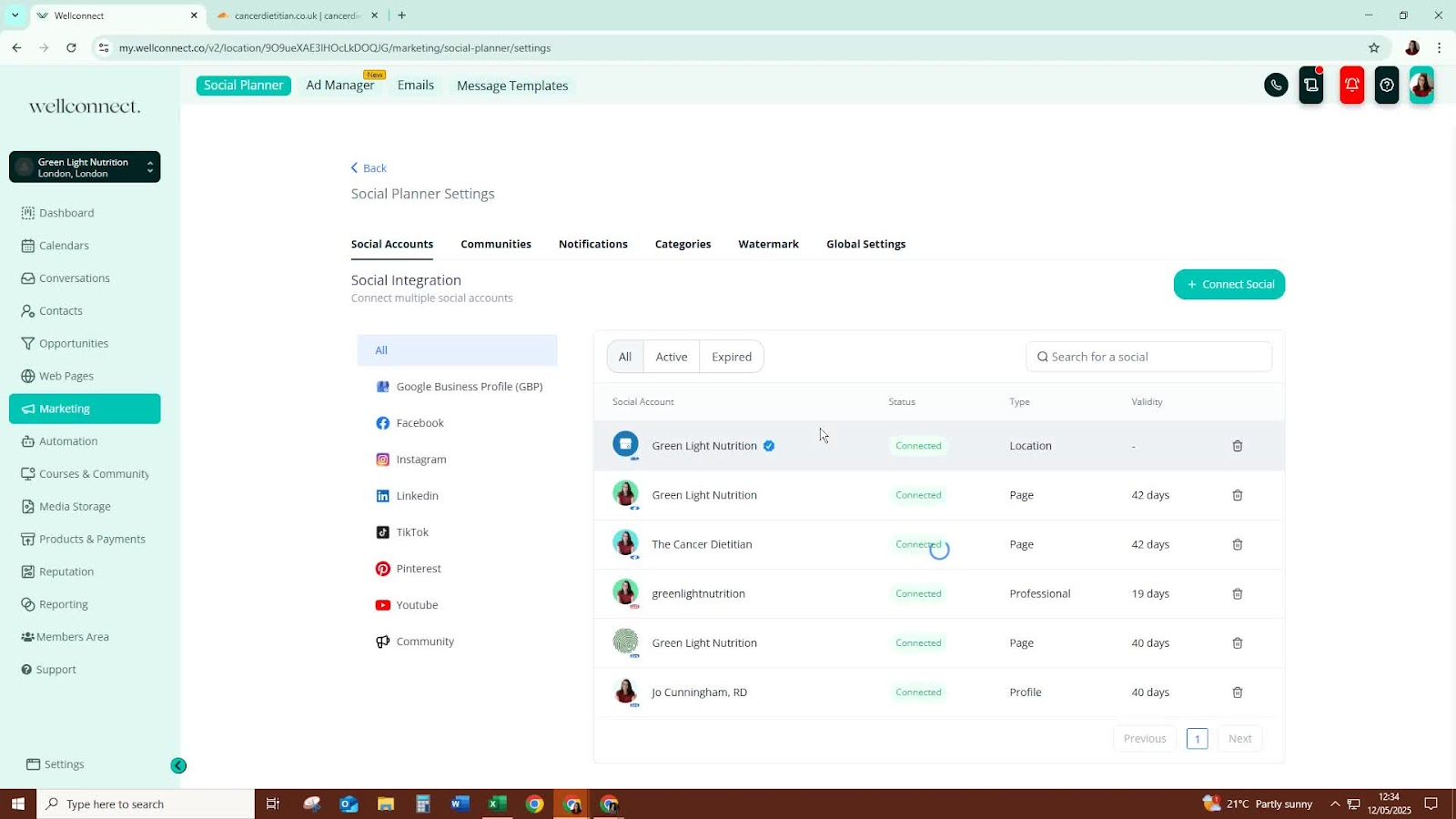
If there are other integrations available, repeat the connection process for those as needed.
Step 7: Monitor Connections 1:10
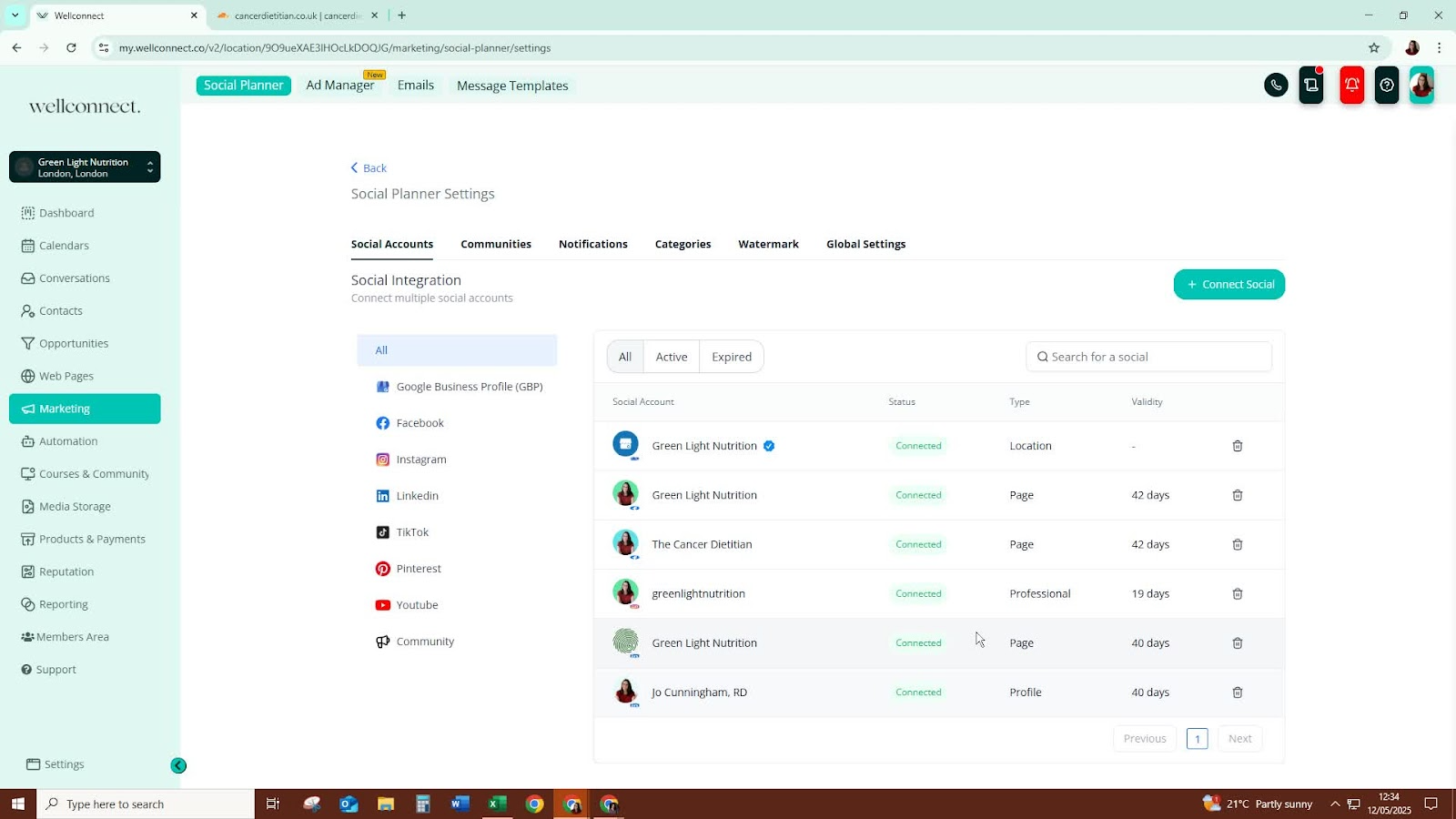
Regularly check the status of your connections to ensure they are still active.
If any connections expire, click on them to reconnect.
Cautionary Notes
Ensure you have the necessary login credentials for each account you are connecting.
Be aware that some integrations may require revalidation after a certain period.
Tips for Efficiency
Keep a checklist of all accounts you need to connect to streamline the process.
Set reminders to check the status of your integrations periodically.
Was this article helpful?
That’s Great!
Thank you for your feedback
Sorry! We couldn't be helpful
Thank you for your feedback
Feedback sent
We appreciate your effort and will try to fix the article