This article provides step-by-step instructions for embedding WBS forms on popular website platforms, including SquareSpace, Wix, and WordPress. Forms are a powerful way to capture leads, engage visitors, and increase conversions directly on your website, even if it’s not hosted on Wellconnect Business Suite.
TABLE OF CONTENTS
- What is Form Embedding
- Key Benefits of Embedding Wellconnect Forms
- Where to Find the Embed Link in Wellconnect Business Suite?
- How to Embed WBS Pop-Up Forms
- Frequently Asked Questions
What is Form Embedding
Embedding WBS forms means integrating a form directly onto your website using your own website editor, allowing visitors to fill it out without being redirected elsewhere. This makes the process seamless, ensuring that lead capture, customer inquiries, or appointment bookings happen right within your branded environment. The best part? You won’t need to switch between multiple platforms or make adjustments in different places—just copy the embed code from Wellconnect Business Suite and paste it into your website editor.
Key Benefits of Embedding Wellconnect Forms
Embedding WBS forms can significantly improve engagement and lead generation on your website. Here are the key benefits:
Capture More Leads: Wellconnect forms enable you to collect visitor information directly on your site, making it easier to nurture leads.
Cross-Platform Integration: Use the forms on various website platforms such as SquareSpace, Wix, and WordPress.
Seamless CRM Syncing: Automatically sync collected data with your WBS CRM for streamlined follow-up and automation.
Improved Engagement: Use customisable forms to display targeted messages, promotions, or surveys.
Performance Tracking: Leverage Wellconnect’s built-in analytics to monitor and optimize the performance of your forms.
Where to Find the Embed Link in Wellconnect Business Suite?
To embed WBS forms on your website, you first need to locate the embed link in your Wellconnect Business Suite account. This link provides the script that allows the form to appear on your chosen website. Here’s how you can find it:
Access Form Builder
From the dashboard, go to the “Web Pages” section in the main navigation menu. Click on the “Forms” menu located at the top right corner. It will take you to the form builder area.
Choose or Create a Form
To embed a form, you can either select an existing one from the list or create a new form. If you’re starting fresh, simply click the “+ Add Form” button to build your form. If you already have a form ready, just select it from the available options.
Access the Embed Link
Once your form is ready, go to the "Integrate" tab located at the top right corner. Select the type of form from the options and click on the Copy Embed Code option.
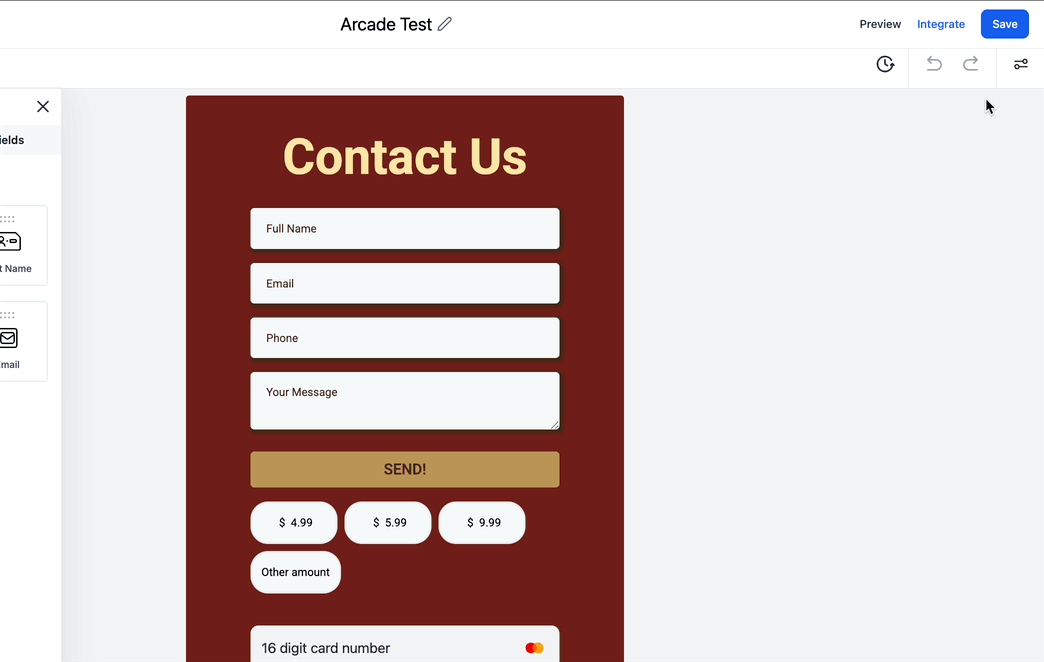
Ready to Use
Your embed link is now ready to be pasted into your website’s code, following the platform-specific instructions outlined below.
How to Embed WBS Pop-Up Forms
Now that you’ve obtained the embed code for your pop-up form, let’s walk through the steps to seamlessly integrate it into your website. We’ve outlined detailed instructions for the most popular website builders.
Squarespace
Squarespace allows adding custom code through its code injection tool, enabling easy embedding of different types of forms. Let's understand each step in details :
Access Settings
Start by logging in to your website builder account and navigating to the Settings menu in your dashboard.
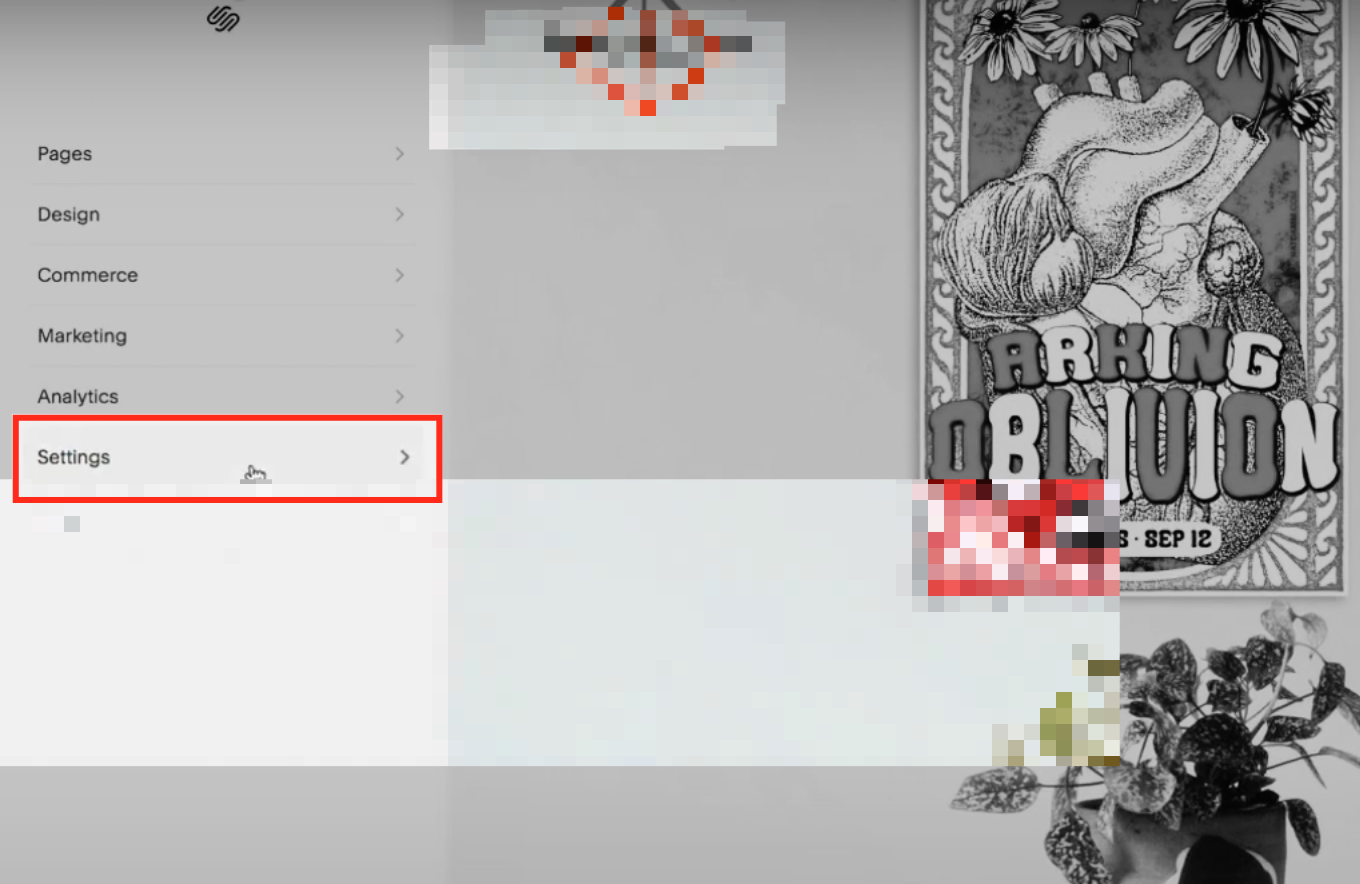
Click Advanced
Within the Settings menu, look for the Advanced option. Click on it to access additional customization features.

Select Code Injection
In the Advanced settings, locate the tab labeled as “Code Injection.”

Add the Embed Code
Decide where to add the embed code:
To display the form across all pages, paste the code into the Header or Footer section of the Code Injection panel.
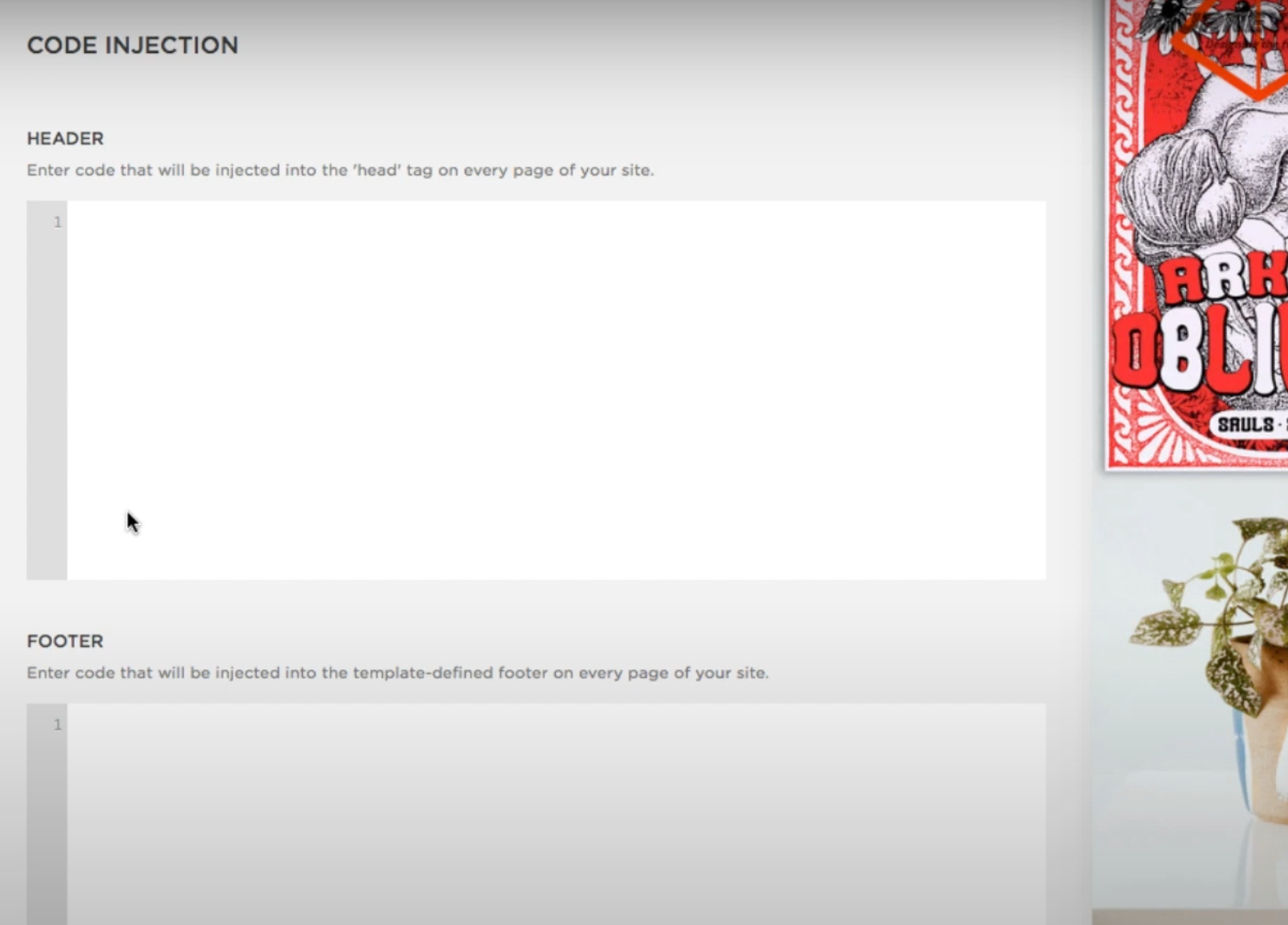
Save and Publish
Once the code is added, click Save in the Code Injection panel or the Per-Page Code Injection field.
Publish your website to apply the changes.
** SquareSpace does not support embedding of forms on checkout pages. Ensure your forms target other areas of your website.Wix Integration
Wix Website Builder Options
- Click the "+" button to find the embed option.
- Click Embed option.
- Select the Embed a Widget option.
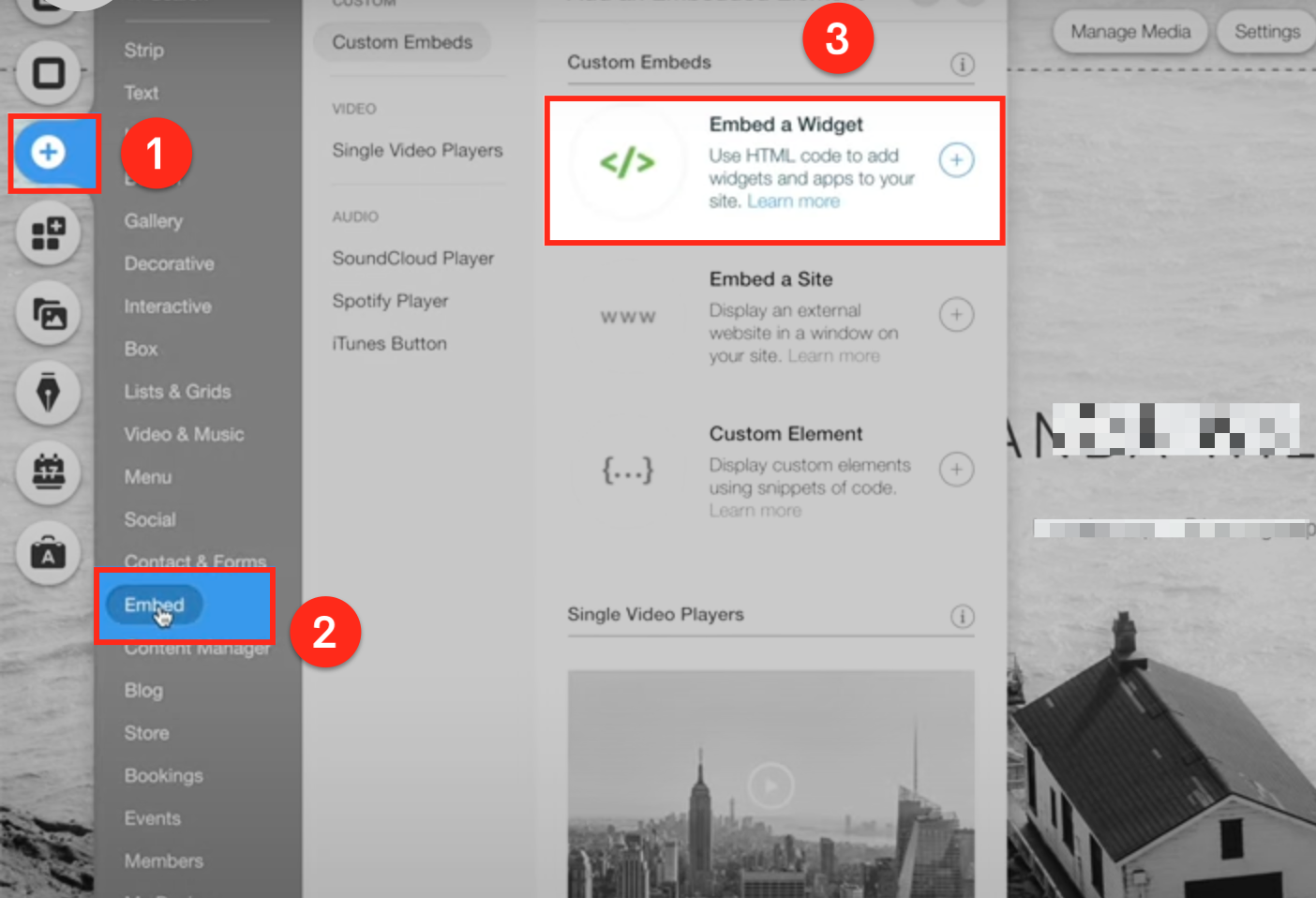
Paste the Code in Wix Editor
Select Code option. Paste the embed script and click Update option to save your changes.
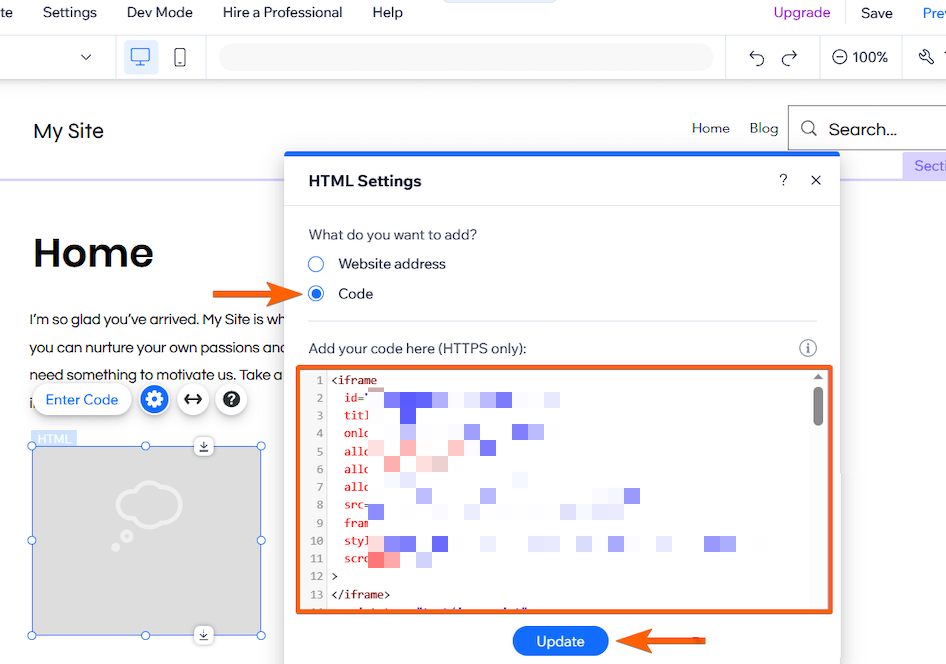
Publish Your Website
Preview the site to confirm the form appears correctly. Once confirmed, publish your Wix website.
WordPress Integration
WordPress supports embedding scripts via plugins or theme settings, making it versatile for adding pop-up forms.
Access the Editor
To begin, navigate to the Pages section in your website’s admin dashboard. This is where you can manage your site’s visual settings and design elements. To get into the editor mode, hover over the page where you wish to embed your Wellconnect form and click the Edit button
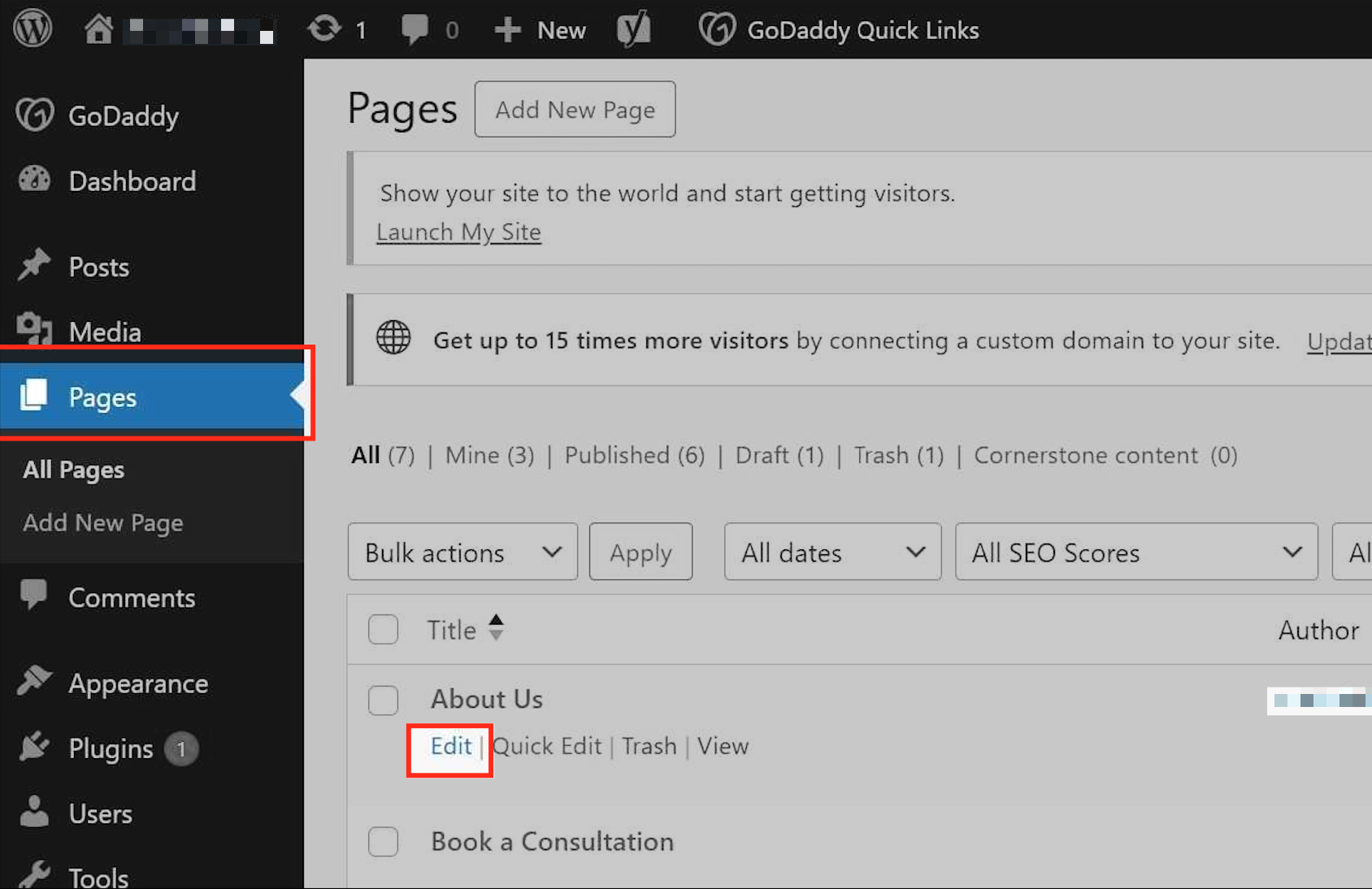
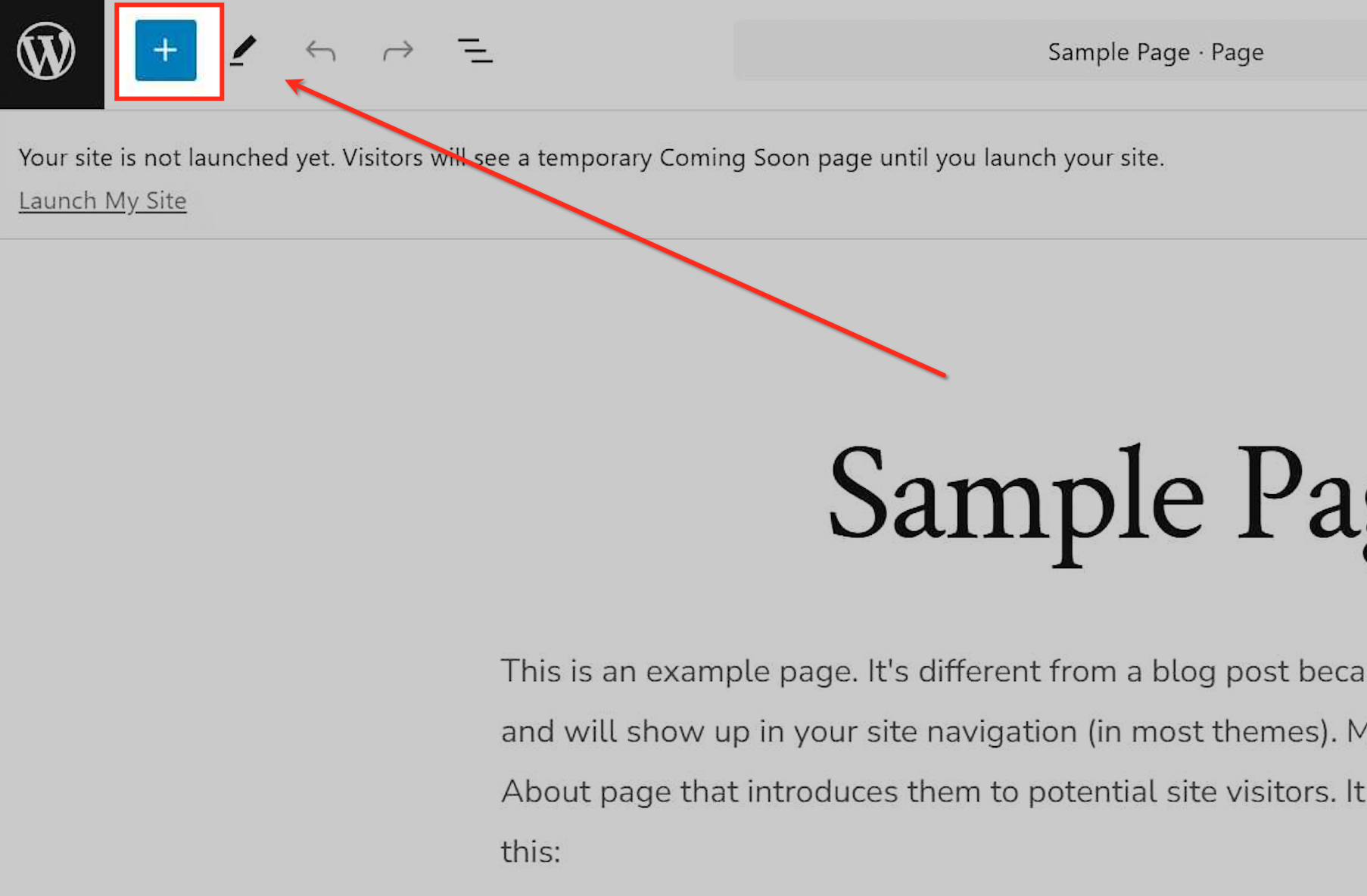
Open the Block Menu
Click the ”+” icon in the editor to reveal the list of available blocks for customizing your page.
Select the Custom HTML Block
Scroll down and select the Custom HTML option to insert your own code into the page layout.
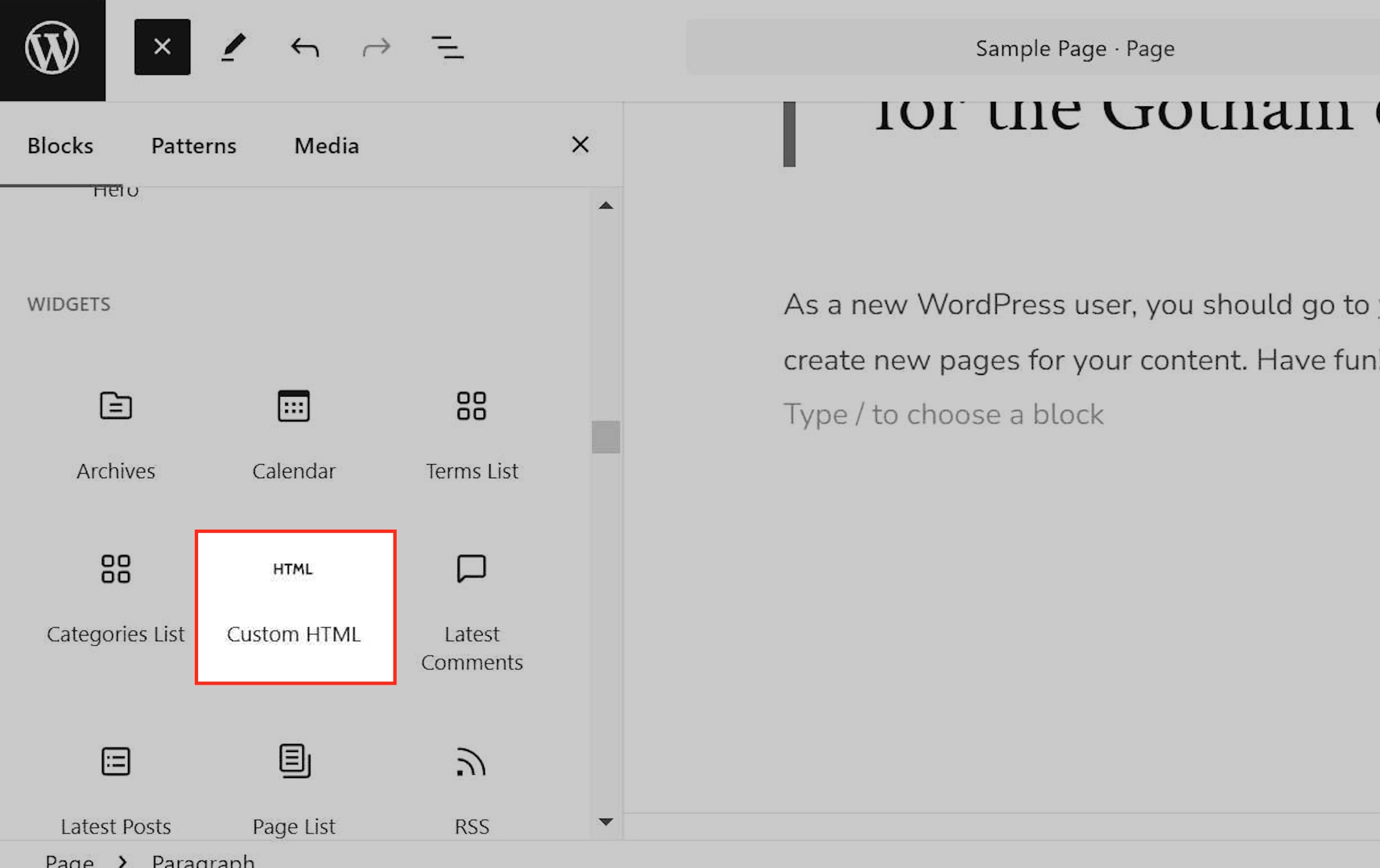
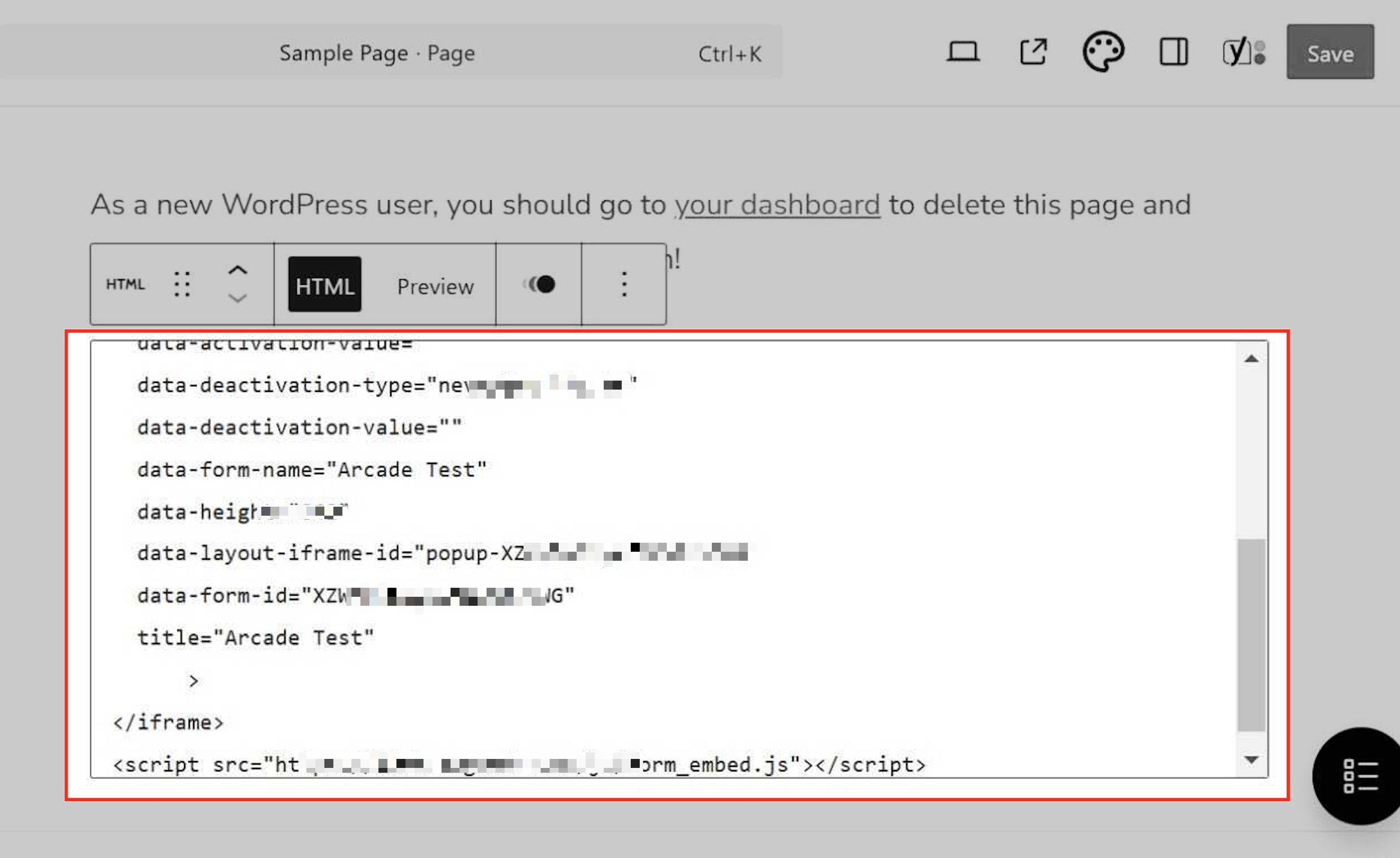
Inserting the Embed Code
Paste the embed code into the appropriate section within the selected file. Ensure it’s placed correctly between the <head> or <footer> tags for proper functionality. Save your changes once done.
Update and Test
Save changes and refresh your website to verify the form appears correctly.
Frequently Asked Questions
Q: Can I customize the appearance of the form?
Yes, you can customize the form’s design and content within WBS before embedding it on your site.
Q: Can I use multiple forms on different pages?
Absolutely! Generate unique embed codes for each form and paste them into the relevant pages.
Q: Is coding experience required?
No! Each platform provides a user-friendly editor for embedding custom scripts.
Was this article helpful?
That’s Great!
Thank you for your feedback
Sorry! We couldn't be helpful
Thank you for your feedback
Feedback sent
We appreciate your effort and will try to fix the article