A contact form is a crucial tool for collecting leads, inquiries, and customer feedback. Wellconnect Business Suite makes it easy to create, customize, and embed contact forms on your website or funnels. Follow this step-by-step guide to create a contact form in WBS.
TABLE OF CONTENTS
- Step 1: Navigate to the Form Builder
- Step 2: Add Form Fields (optional)
- Step 3: Customise Form Settings (Optional)
- Step 4: Save & Embed the Form
Step 1: Navigate to the Form Builder
- In the left-hand menu, click on Web Pages
- Choose Forms in the top menu.
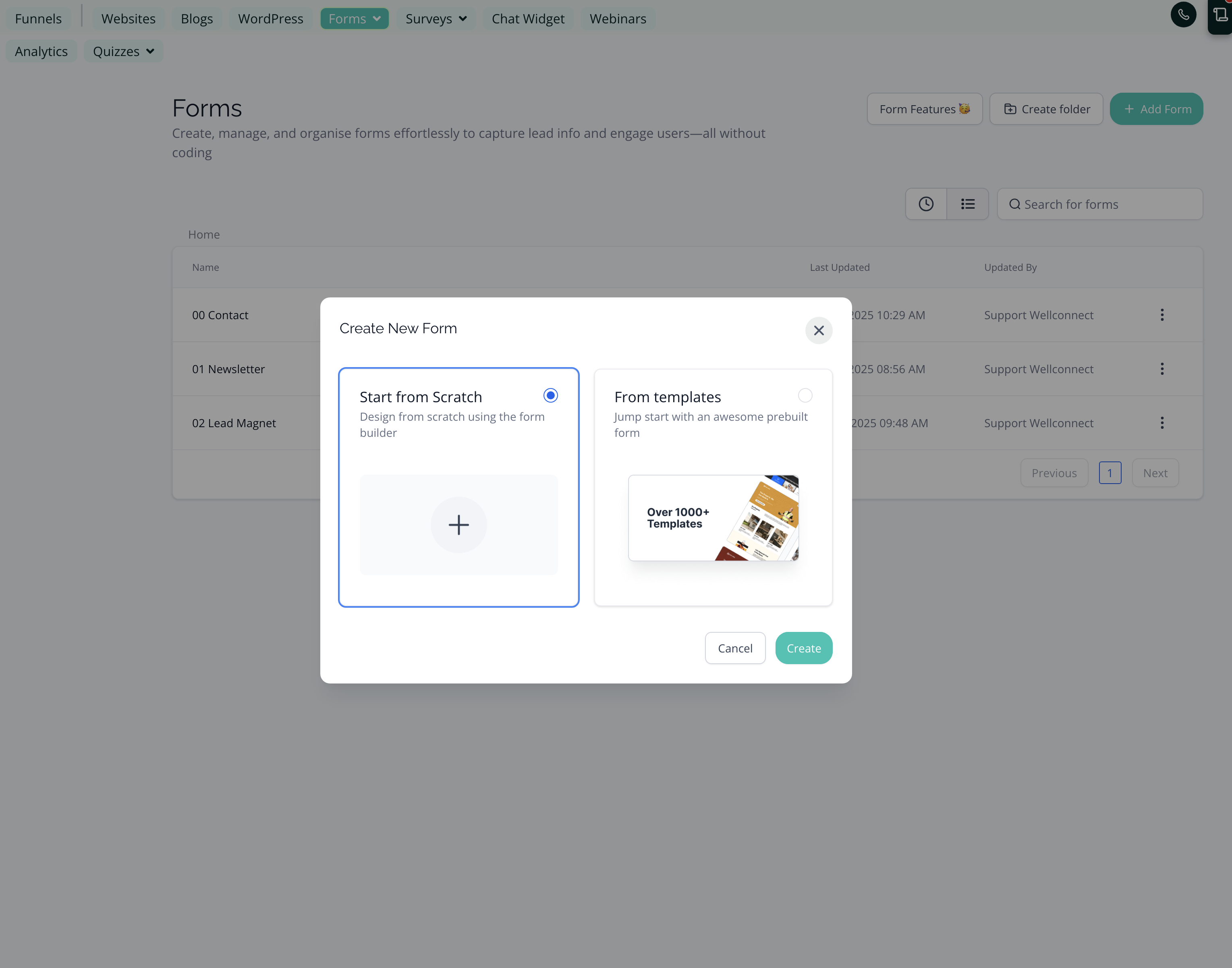
- Click the + Add Form button to start a new form.
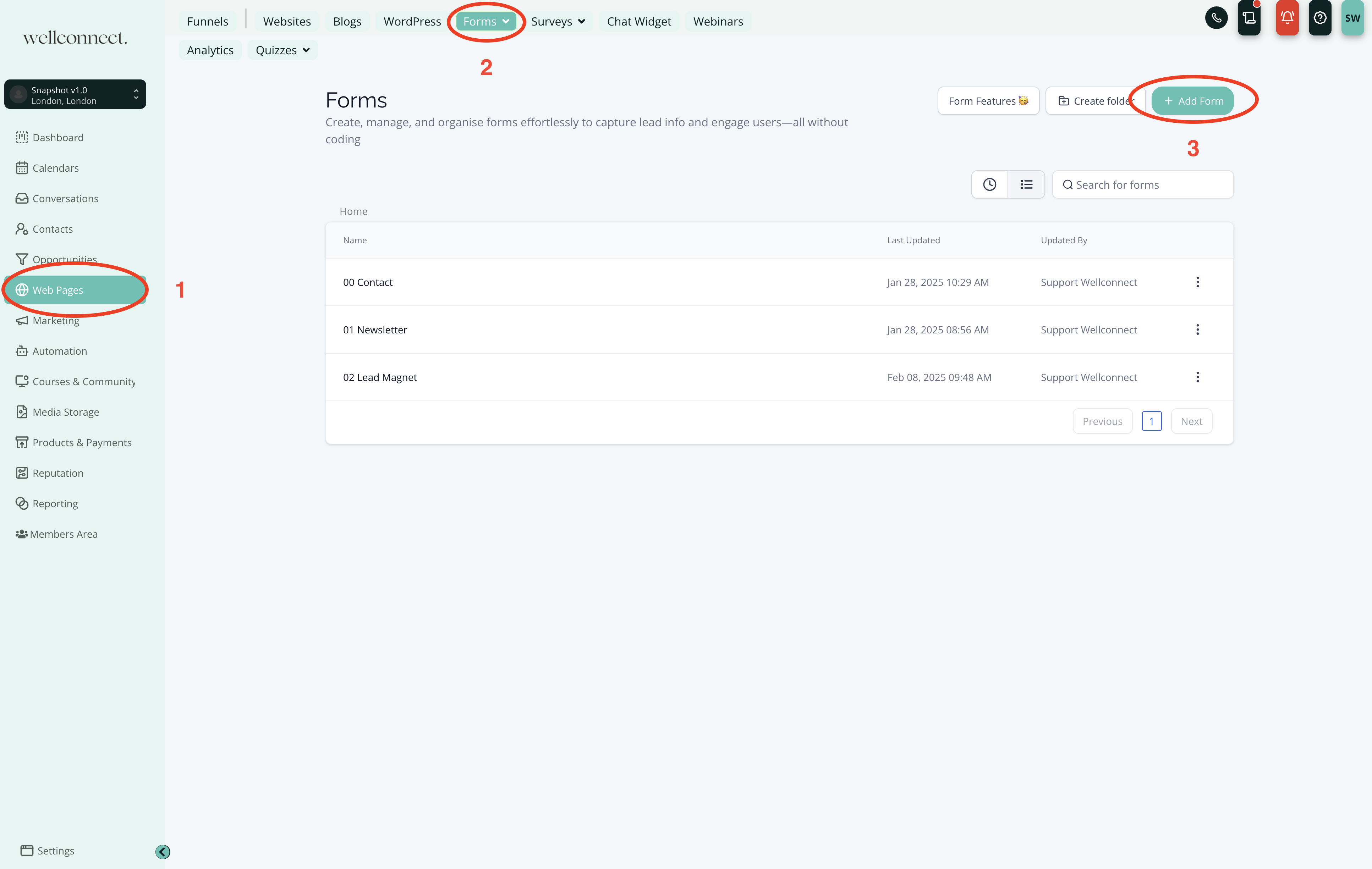
You may choose to use one of our existing templates for "Contact Forms" or create a new one that suits your needs.
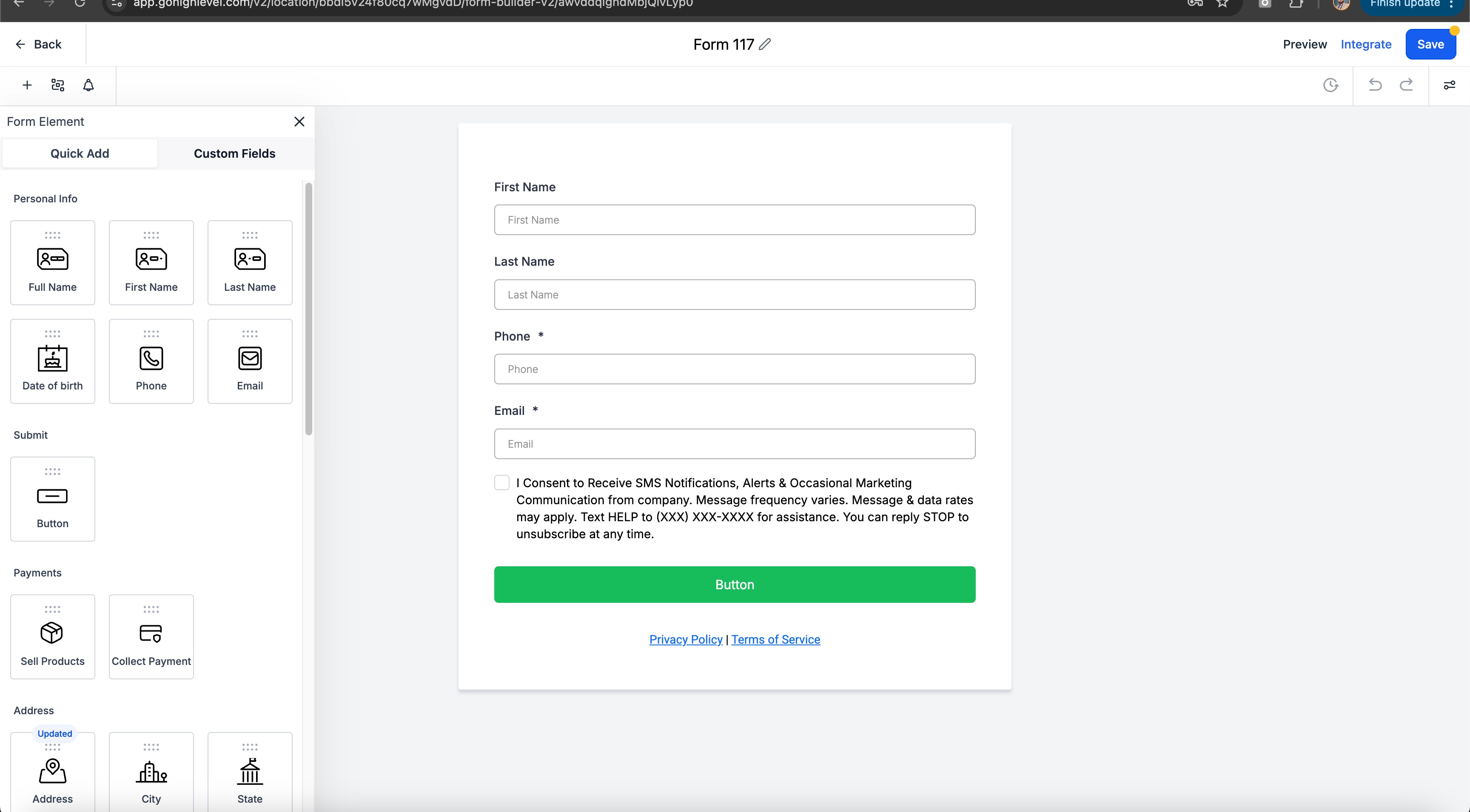
Step 2: Add Form Fields (optional)
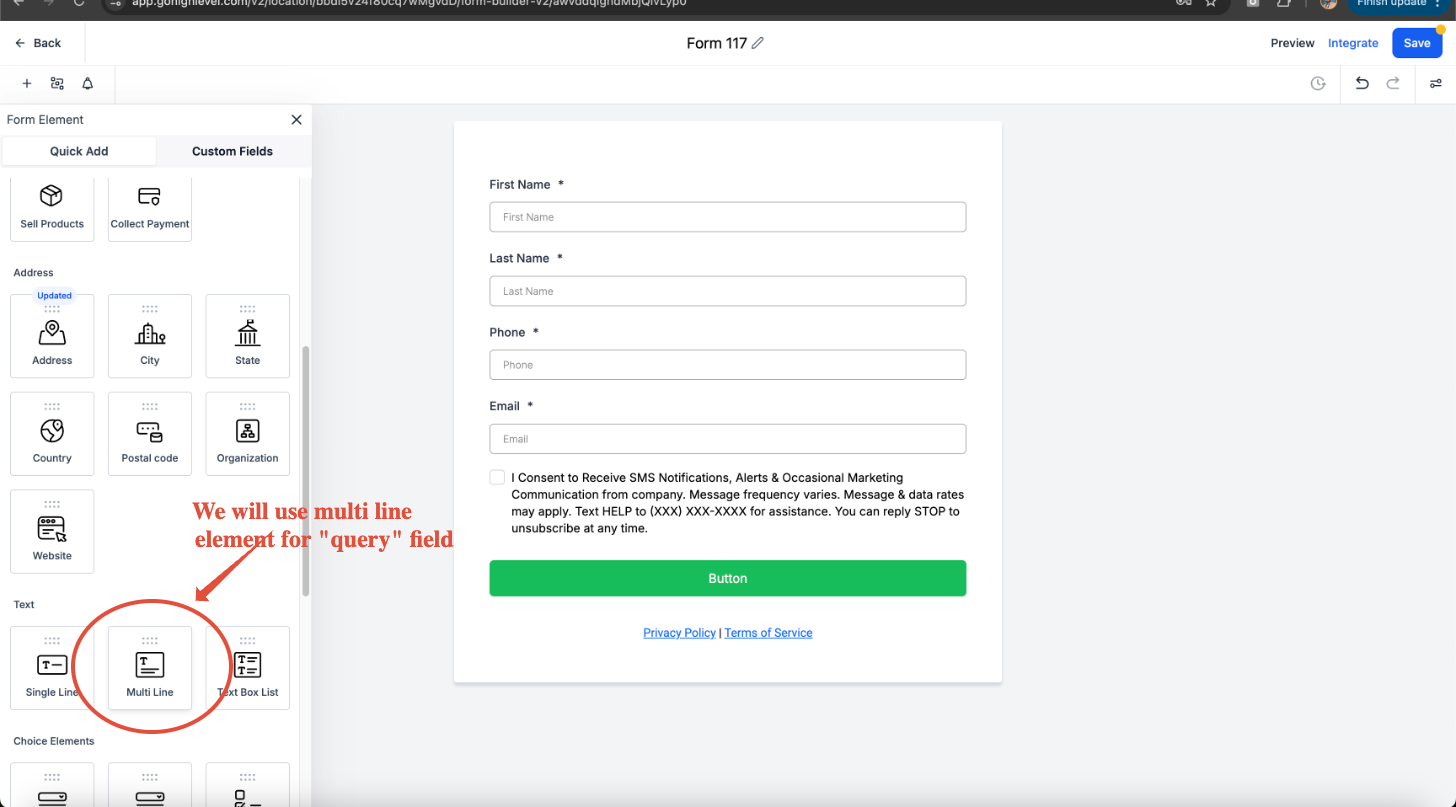
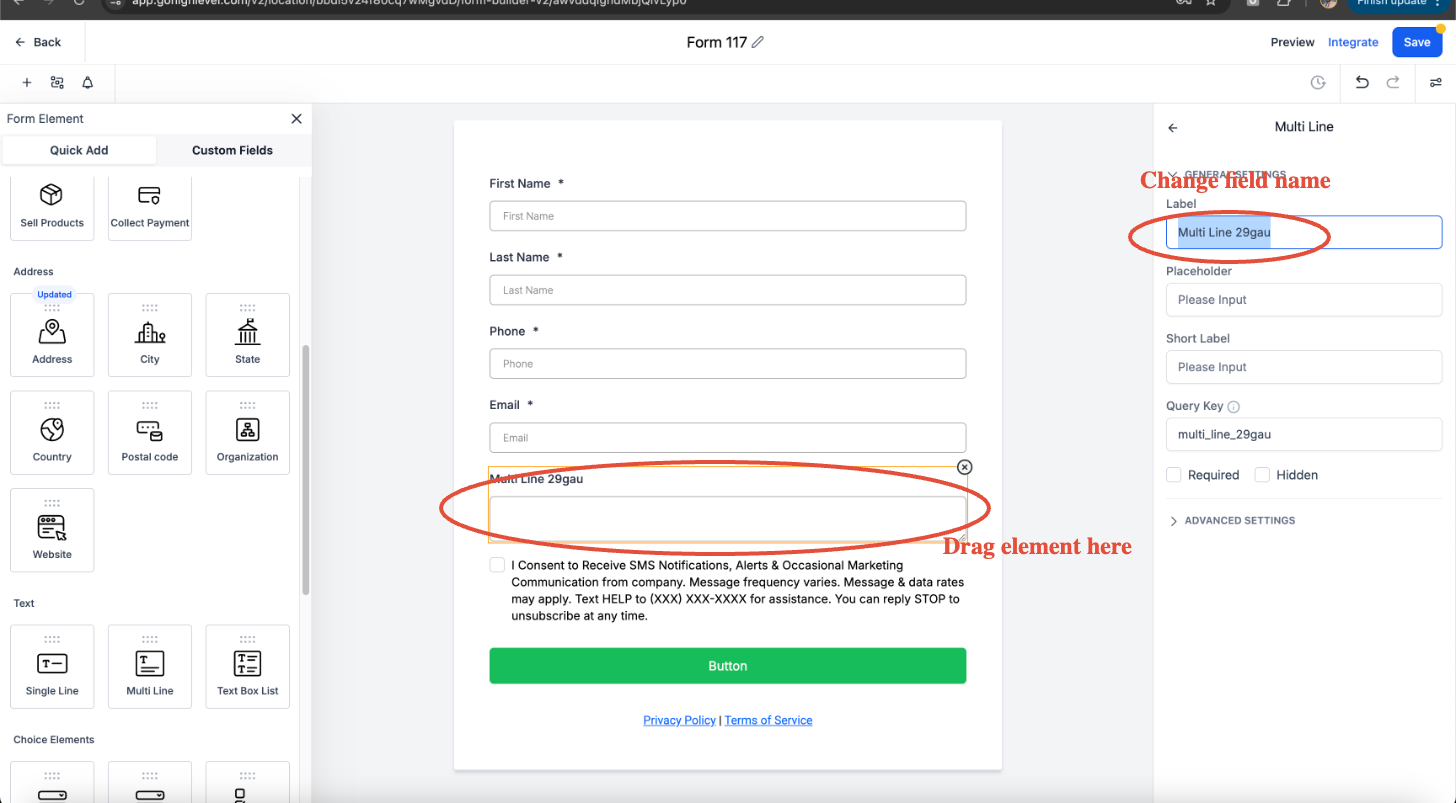
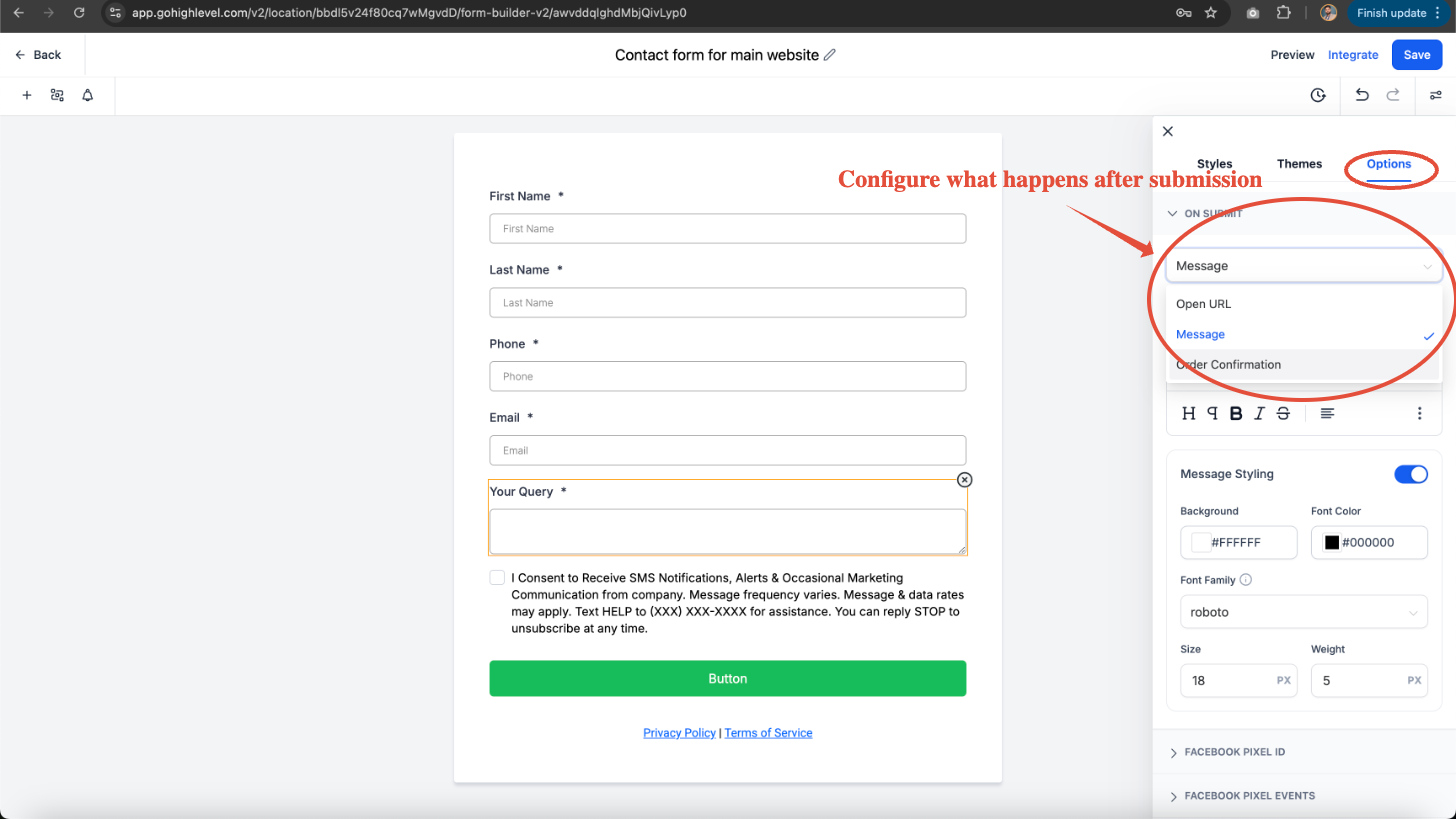
Drag and drop the required fields from the Form Elements section, for example Full Name, Email, Phone Number, Message/Custom Text Area, etc. If you need additional fields, use: Custom Fields to collect unique data. Dropdowns, checkboxes, or radio buttons for specific options. You can also rearrange fields as needed by dragging them into the desired order.
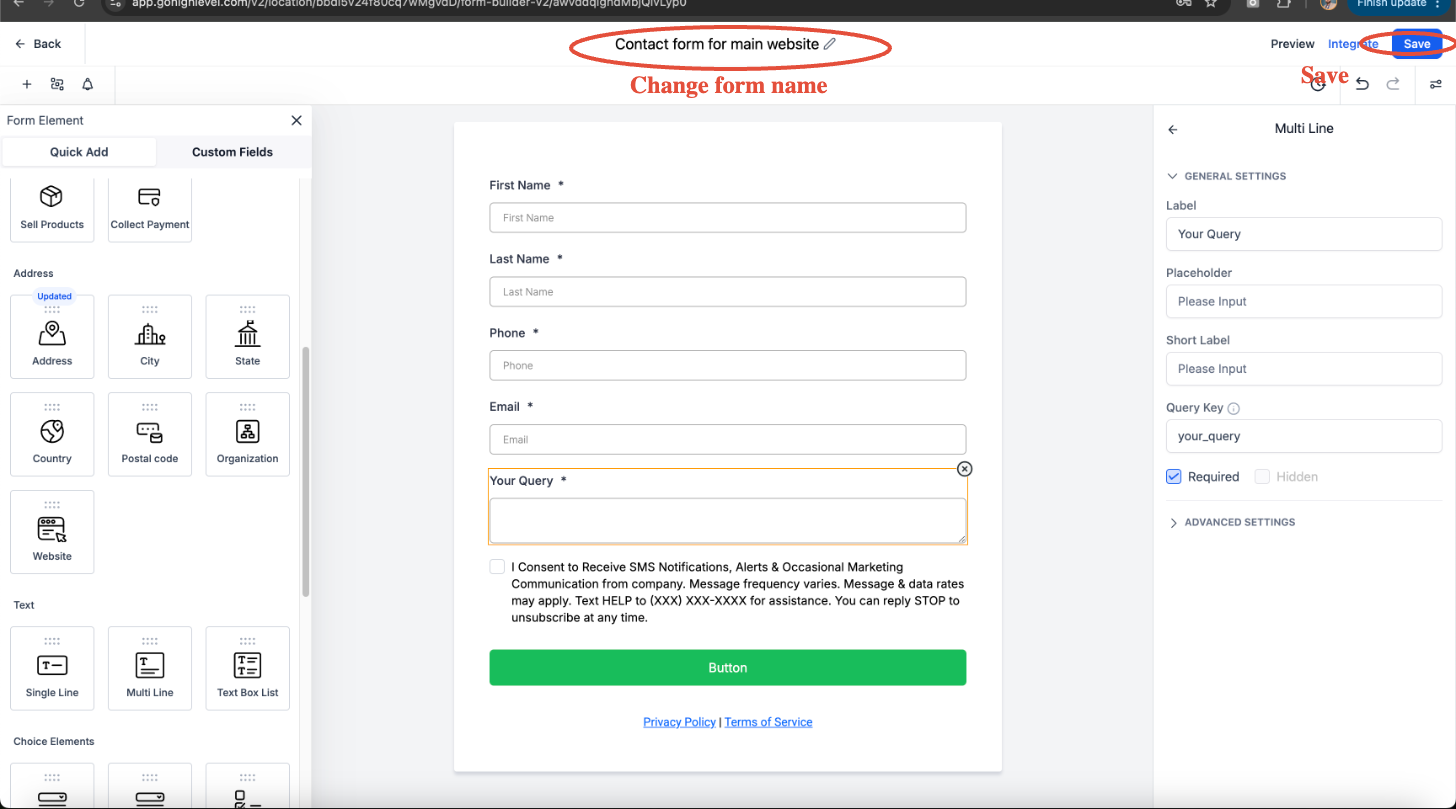
For the sake of this example we will use "query" as a field on the contact form.
Step 3: Customise Form Settings (Optional)
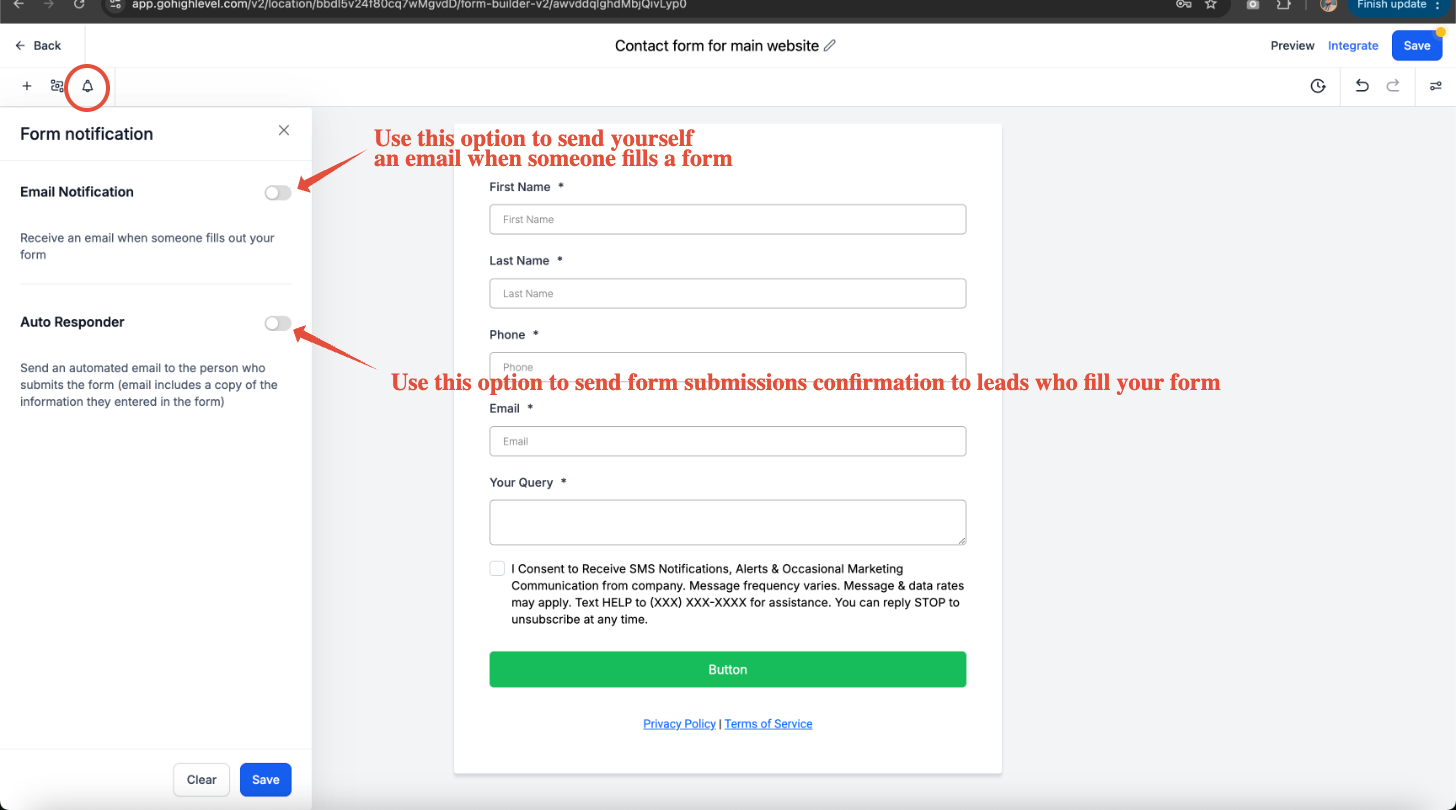
Notifications
You can setup notifications via email for yourself & also for the leads that fill your form
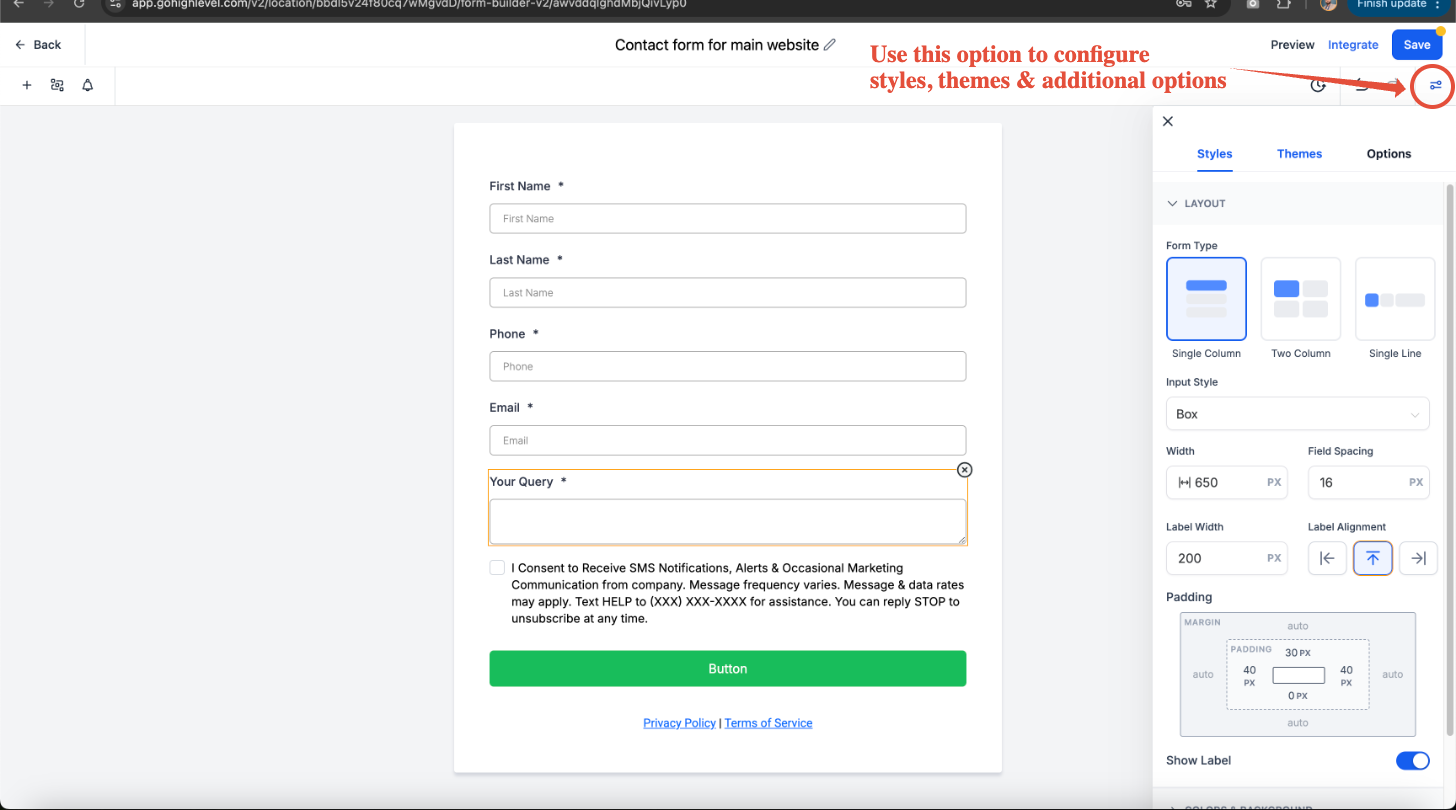
Form Style & Design:
Click the Styles tab to adjust the form’s background, text color, and spacing.
Toggle Full Width for responsive design.
Form Actions:
Under Settings, choose what happens after submission: Show a Thank You Message (Enter a custom message) or Redirect to Another Page (Enter a URL). Youi can also Trigger a Workflow or Automation (e.g., Send a follow-up email)
Step 4: Save & Embed the Form
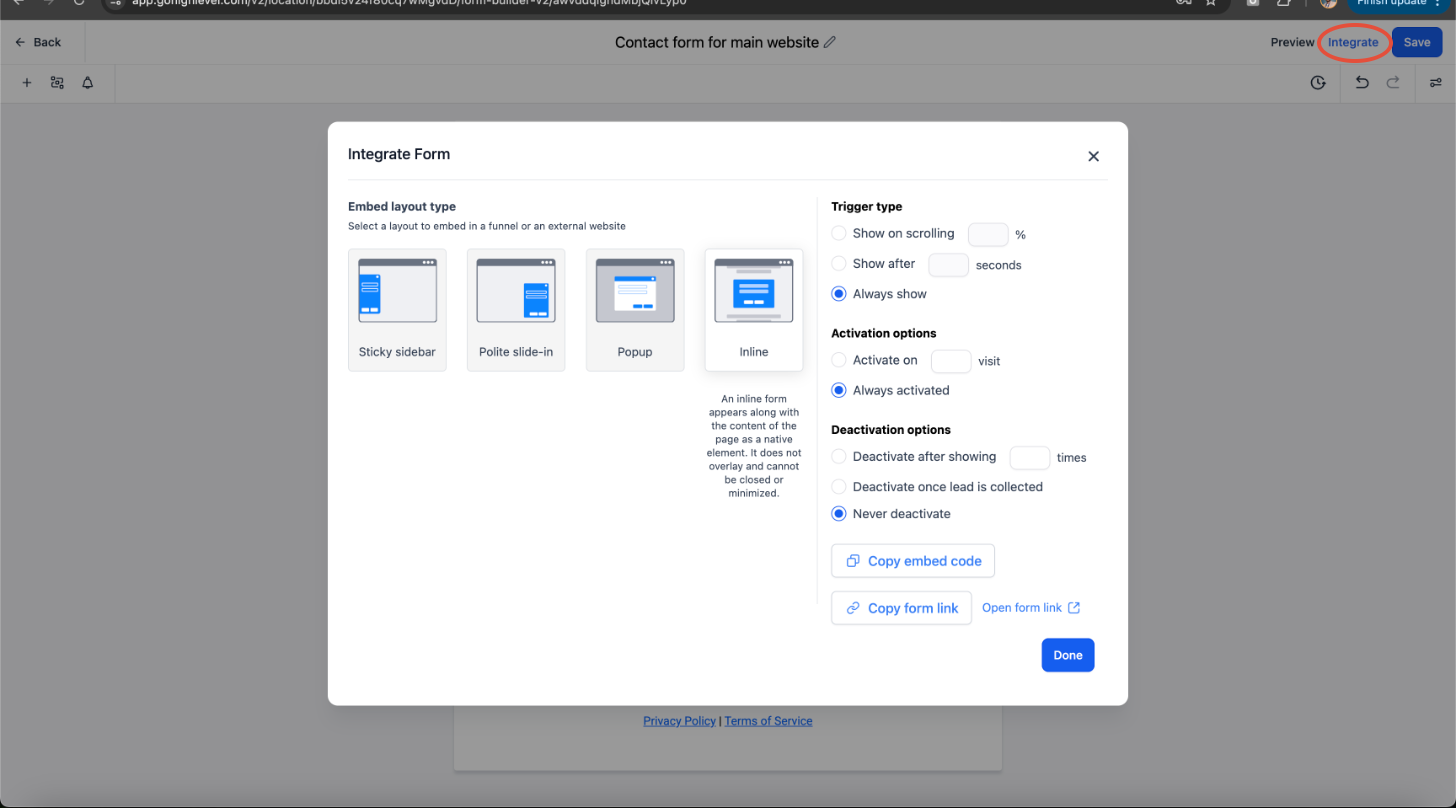
Click Save Form once satisfied.
Click the Integrate Form button to get embedding options
With these steps, you’ll have a fully functional contact form in WBS, ready to capture leads and engage with prospects ?
Was this article helpful?
That’s Great!
Thank you for your feedback
Sorry! We couldn't be helpful
Thank you for your feedback
Feedback sent
We appreciate your effort and will try to fix the article