Purpose
To guide Wellconnect users through connecting their Facebook Page and Instagram Business Account so conversations can be managed directly inside the CRM.
Scope
For Wellconnect users who want to manage Facebook Messenger and Instagram Direct messages within their Business Suite account.
Overview
By connecting your Facebook Page and Instagram Business Account:
You can send and receive messages directly inside Wellconnect.
Conversations are logged against contact records in the CRM.
Your team can manage social messaging from one central location.
Both platform permissions and in-app settings must be correctly configured.
Facebook Page Messaging Setup
Follow all steps below to ensure messaging works correctly.
Step 1: Confirm LeadConnector Access in Facebook
Go to Facebook Business Integrations:
https://www.facebook.com/settings?tab=business_tools&ref=settings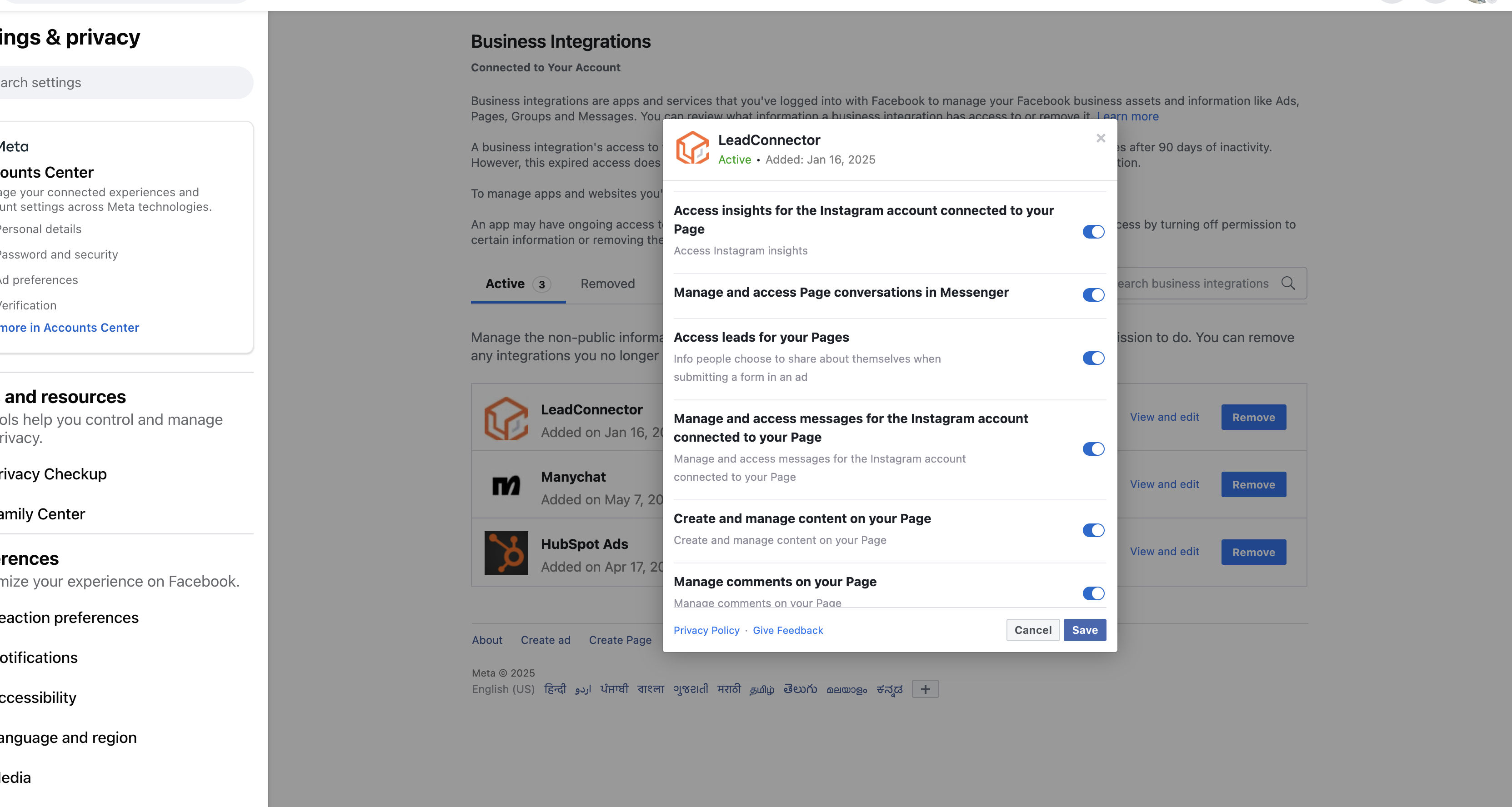
Locate LeadConnector in the active integrations list.
Ensure the following permissions are enabled:
Access messages
Send messages
If permissions are missing, remove and reconnect the integration from Wellconnect.
Step 2: Confirm User Page Access
Go to Facebook Business Settings:
https://business.facebook.com/latest/settings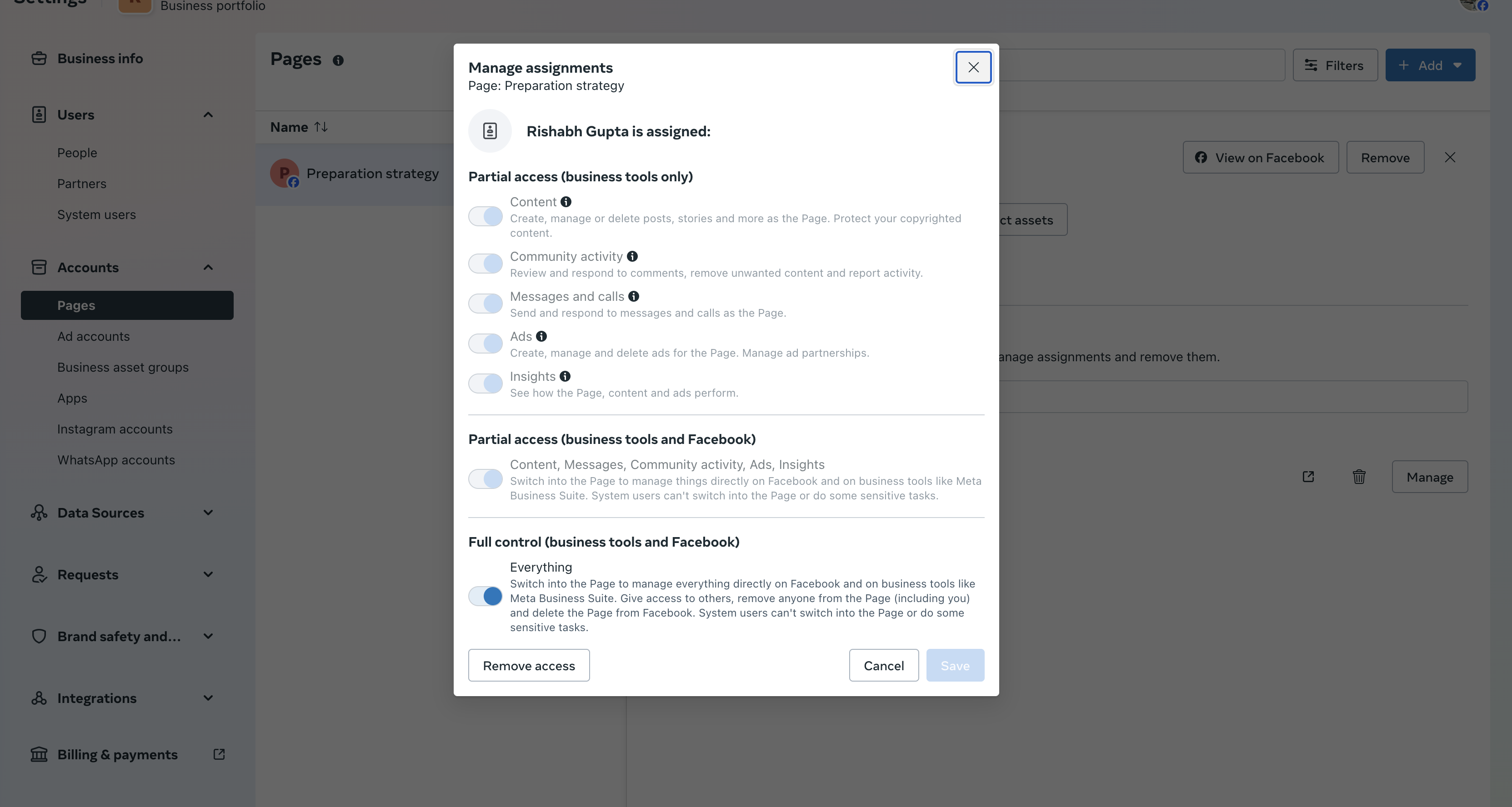
Select the relevant Facebook Page.
Confirm your user account has:
Full Page access
Messaging permissions enabled
Without full access, messaging may fail to sync.
Step 3: Enable Facebook Messaging in Wellconnect
Log in to Wellconnect.
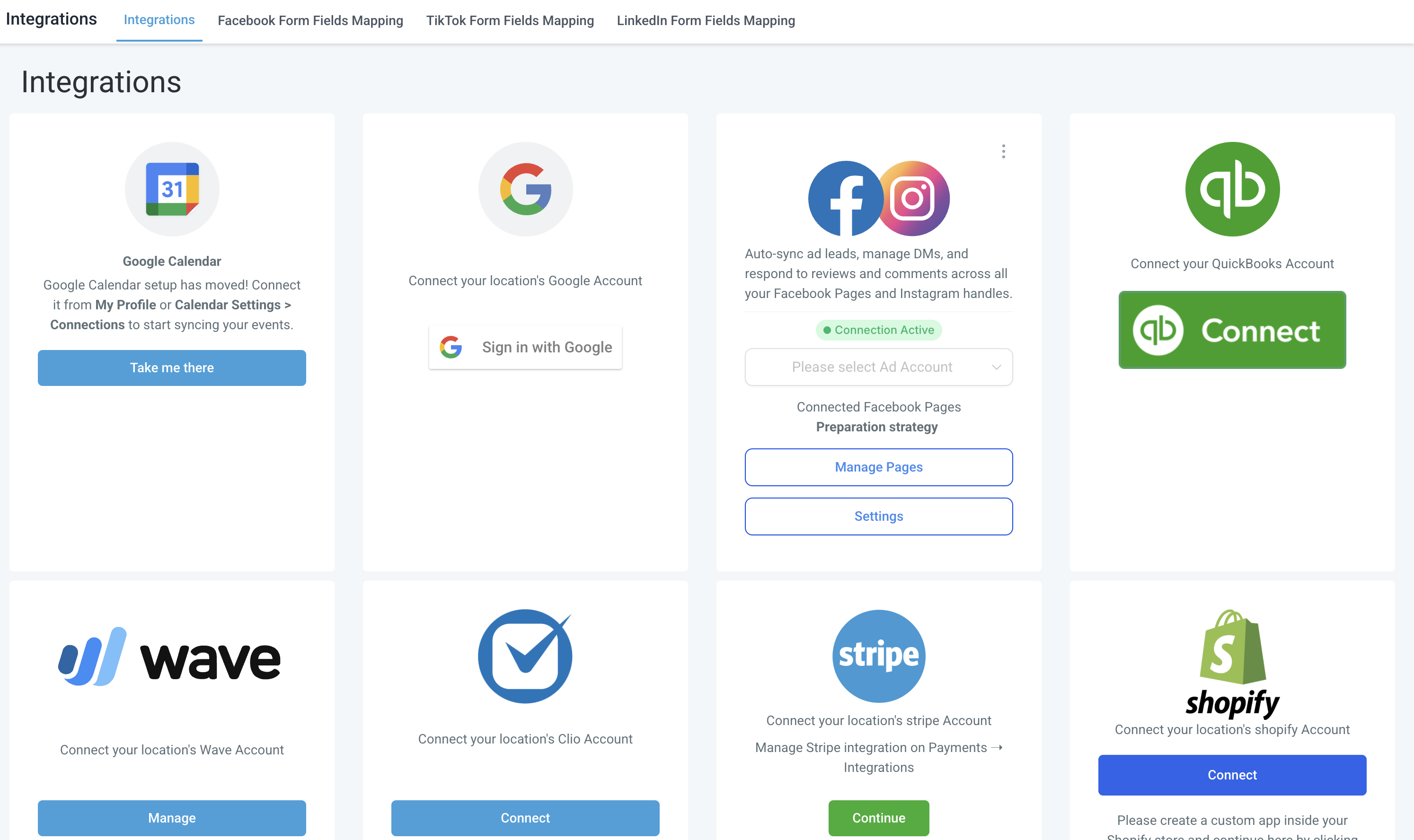
Navigate to Settings → Integrations.
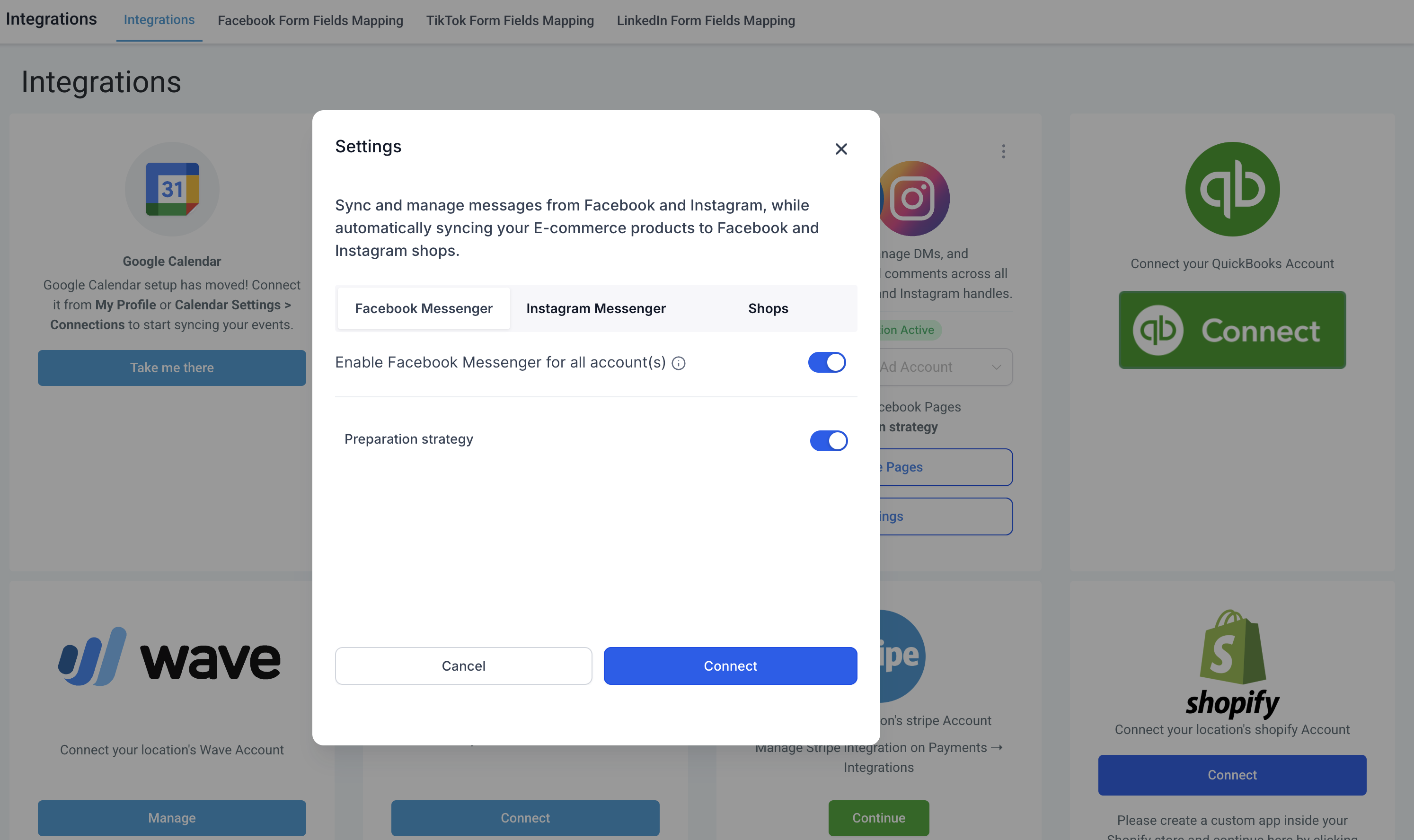
Open the Facebook integration card.
Click Settings.
Ensure Facebook Messenger is enabled.
Instagram Messaging Setup
Instagram messaging requires additional verification steps.
Step 1: Confirm LeadConnector Access
Visit:
https://www.facebook.com/settings?tab=business_tools&ref=settingsLocate LeadConnector.
Ensure it has:
Access to messages
Permission to send messages
Step 2: Confirm Instagram Messaging Access in Business Settings
Navigate to Instagram Accounts.
Confirm you have permission to:
Send messages
Receive messages
Step 3: Verify Instagram is Connected to the Correct Page
In Facebook Business Settings, open the connected Facebook Page.
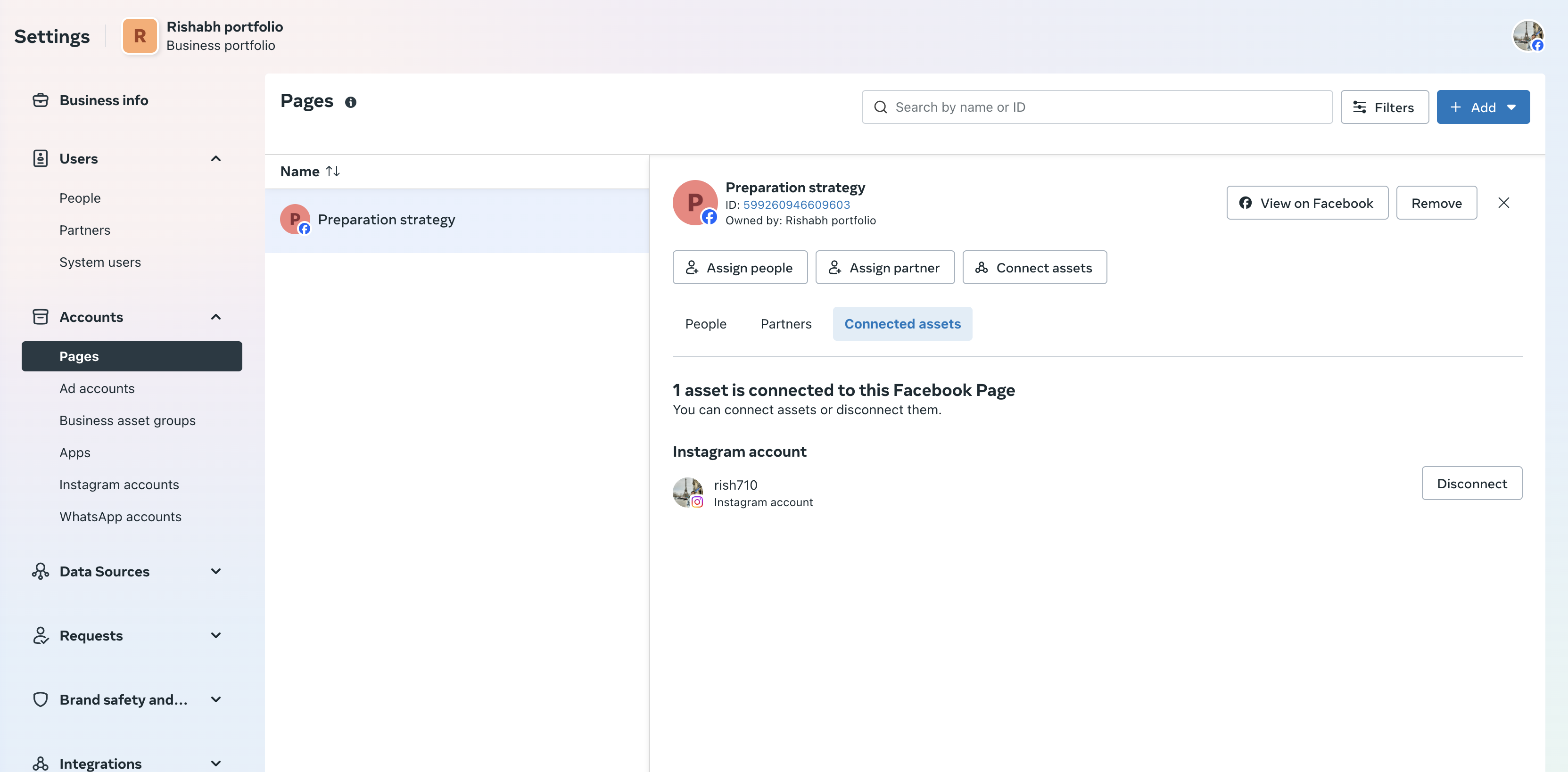
Review the Connected Assets section.
Confirm the correct Instagram Business Account appears in the list.
If it is not listed, reconnect the Instagram account to the Page.
Step 4: Enable Instagram Messaging in Wellconnect
Log in to Wellconnect.
Navigate to Settings → Integrations.
Open the Facebook integration card.
Click Settings.
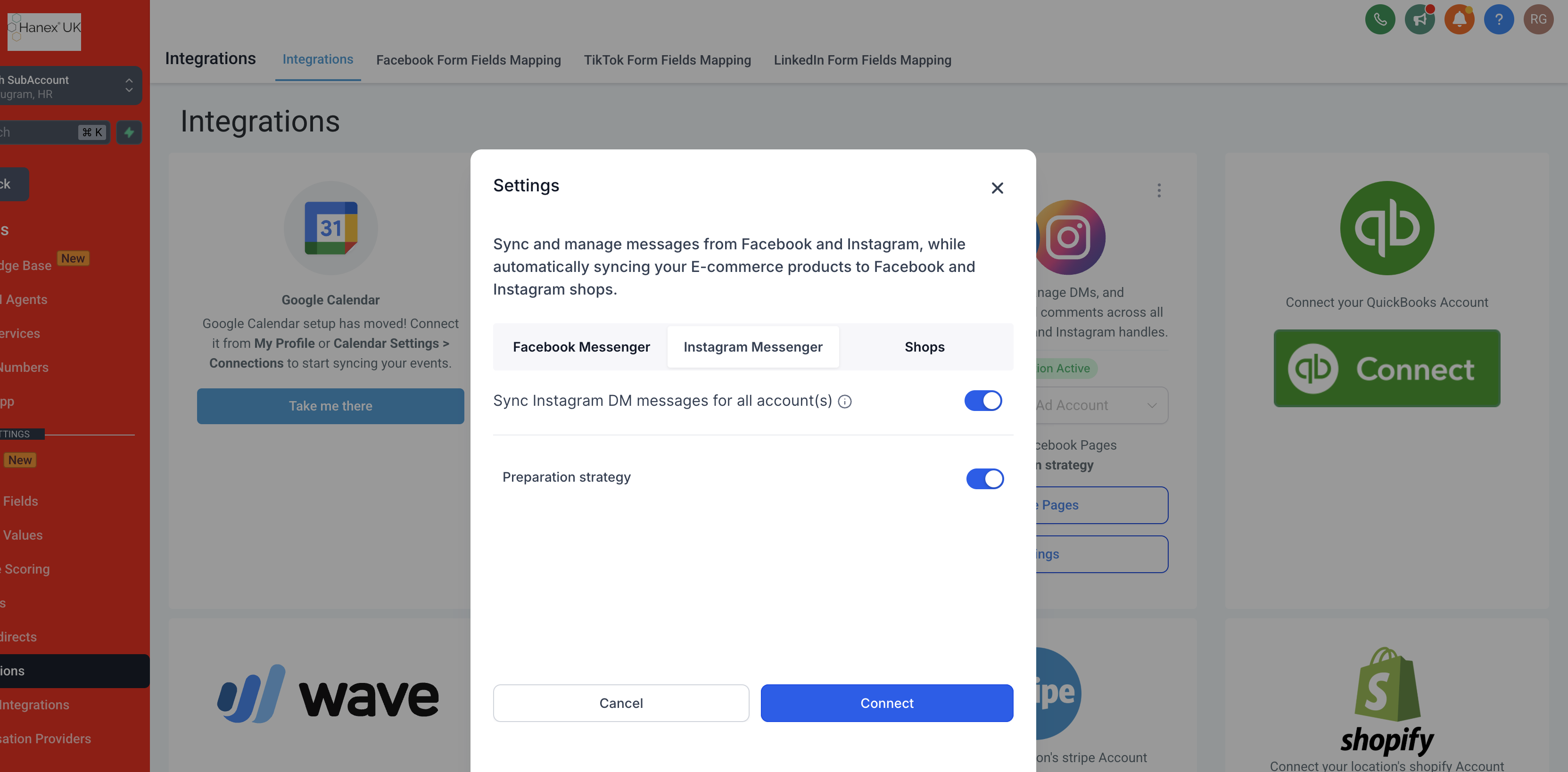
Ensure Instagram messaging is enabled.
Step 5: Enable Access to Connected Tools in the Instagram App
This setting must be enabled inside the Instagram mobile app.
Log in to the Instagram app.
Go to Settings and Activity.
Select Messages and Story Replies.
Open Message Requests.
Enable Allow Access to Connected Tools.
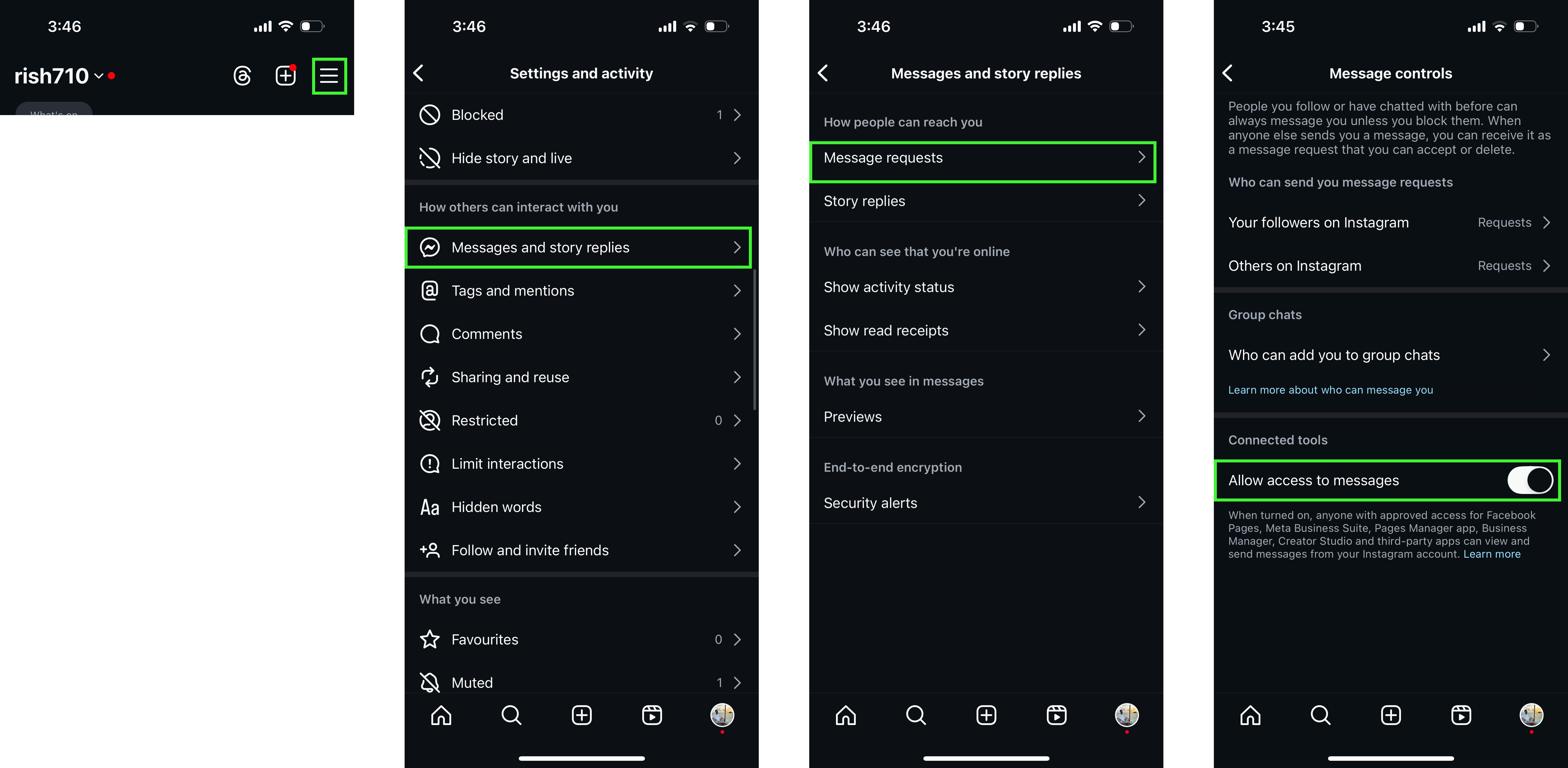
If this setting is disabled, Instagram messages will not sync to Wellconnect.
Verification
To confirm everything is working:
Send a test message to your Facebook Page.
Confirm it appears inside the Wellconnect Conversations tab.
Send a test Instagram Direct Message.
Confirm it appears in Wellconnect.
Reply from Wellconnect and verify the reply is delivered on the platform.
Troubleshooting
Messages Not Appearing in Wellconnect
Confirm LeadConnector permissions are active.
Confirm you have full Page access.
Ensure messaging is enabled in Wellconnect integration settings.
Check that Instagram “Allow Access to Connected Tools” is enabled.
Unable to Send Messages
Reconnect the Facebook integration from Wellconnect.
Confirm your Facebook user has full administrative access.
Verify the Instagram account is properly linked to the Facebook Page.
If issues persist, contact Wellconnect Support and provide:
Your Business Suite account name
Screenshot of Facebook Business Integrations page
Screenshot of Page access permissions
Screenshot of Wellconnect Integration settings
Was this article helpful?
That’s Great!
Thank you for your feedback
Sorry! We couldn't be helpful
Thank you for your feedback
Feedback sent
We appreciate your effort and will try to fix the article
