Purpose
To guide Wellconnect users through connecting an Instagram Business or Creator account to a Facebook Page via Meta. This connection is required to use Instagram Actions in a workflow or run Instagram ads through Ads Manager and to ensure proper platform integration.
Scope
For Wellconnect users managing Facebook and Instagram assets within their Business Suite account.
Overview
To run ads on Instagram through Meta Ads Manager, your Instagram Business Account must be connected to a Facebook Page.
Once connected:
The Instagram account will automatically be selected when the linked Facebook Page is chosen for advertising.
Messaging and ad publishing alignment is streamlined.
Platform permissions are properly synchronised.
This setup must be completed within the Meta platform.
Step 1: Switch to an Instagram Business or Creator Account
Skip this step if your Instagram account is already set to Business or Creator.
Steps
Open the Instagram app.
Go to your Profile.
Tap the menu (☰) in the top right.
Select Settings and Activity.
Scroll to Account Type and Tools.
Tap Switch to Professional Account.
Choose:
Business (recommended for advertising), or
Creator
Select your business category (e.g. E-commerce, Health & Wellness).
Tap Next and follow the prompts to complete setup.
Step 2: Connect Instagram to Your Facebook Page
There are two ways to connect your account.
Option A: Connect via Facebook Page Settings (Recommended)
Log in to Facebook.
Open your Business Page.
Click Settings (left-hand sidebar).
Select Linked Accounts → Instagram.
Click Connect Account.
Log in using your Instagram credentials.
Ensure Allow Access to Messages & Connected Experiences is enabled.
Click Confirm.
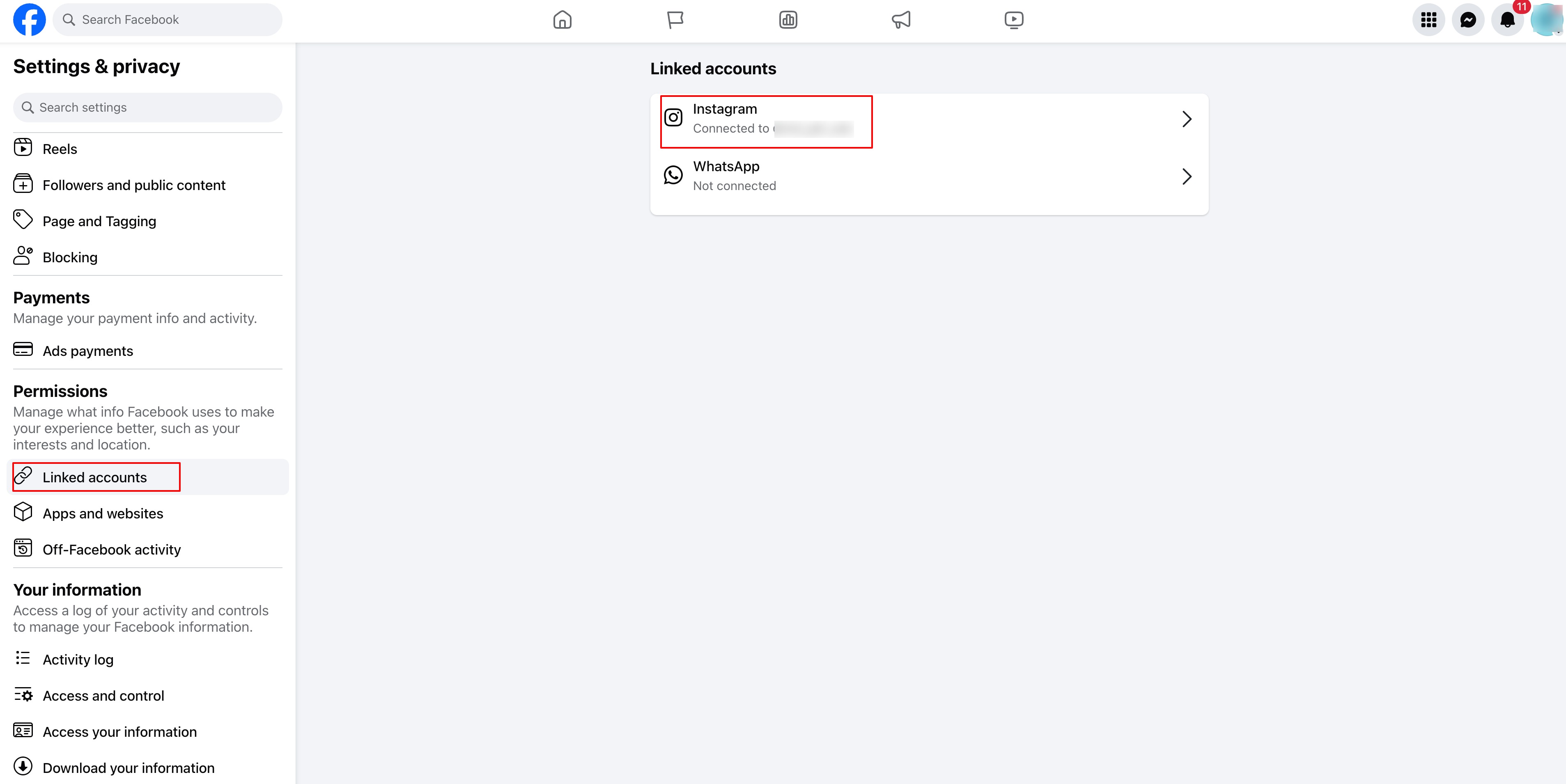
The accounts are now linked.
Option B: Connect via the Instagram App
This option is only available if your Instagram account is set to Professional.
Open Instagram.
Go to your Profile.
Tap Edit Profile.
Scroll to Public Business Information.
Tap Page.
Select Connect or Create a Facebook Page.
Choose your existing Facebook Page or create a new one.
Tap Done to save changes.
Step 3: Verify the Connection in Meta Business Suite
Go to Meta Business Suite:
https://business.facebook.comClick Settings.
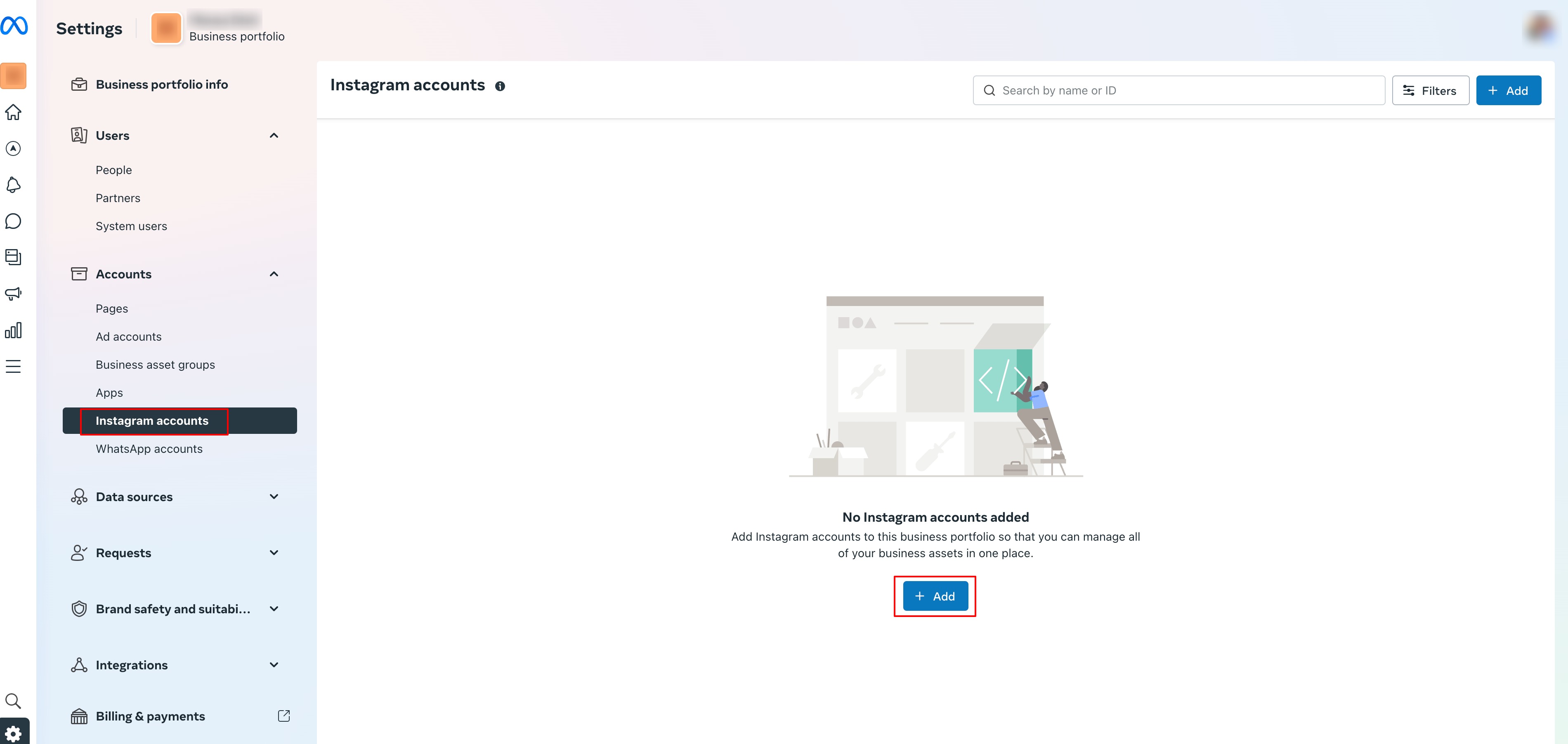
Select Instagram Accounts.
Confirm your Instagram account appears in the list.
If it does not appear:
Click Add Instagram Account.
Log in and complete the connection steps.
Final Verification Checklist
Confirm the following:
Instagram is set as a Professional (Business or Creator) account.
The Instagram account is connected to the correct Facebook Page.
The connection is visible inside Meta Business Suite.
Important Notes
Only one Instagram account can be connected to a Facebook Page at a time.
The connection must be completed inside Meta (not inside Wellconnect).
Proper permissions are required in both Facebook and Instagram.
Verification
To confirm the setup is successful:
Open Meta Ads Manager.
Create a test campaign.
Select the connected Facebook Page.
Confirm the Instagram account auto-populates as the publishing account.
If the Instagram account appears automatically, the connection is working correctly.
Troubleshooting
Instagram Not Showing in Meta Business Suite
Confirm the account is set to Professional.
Reconnect via Facebook Page settings.
Ensure you have admin access to the Facebook Page.
Unable to Connect Accounts
Confirm login credentials are correct.
Ensure there are no existing conflicting page connections.
Remove and reconnect the Instagram account if necessary.
If issues persist, contact Wellconnect Support and provide:
Your Business Suite account name
Screenshot of Facebook Page Linked Accounts
Screenshot of Meta Business Suite Instagram Accounts section
Was this article helpful?
That’s Great!
Thank you for your feedback
Sorry! We couldn't be helpful
Thank you for your feedback
Feedback sent
We appreciate your effort and will try to fix the article
